
Set up Stripe
Set up Stripe to start accepting Affirm payments online and in-person. Learn the requirements and how to configure payment methods for a secure, flexible checkout experience.
Overview
Setting up Stripe enables merchants to accept, process, and manage Affirm payments through a single platform. Stripe supports a wide range of payment methods and offers flexible integration options, from no-code solutions to fully customizable API-based implementations.
Merchants can use Stripe to power checkout experiences, manage transactions, and support both online and in-person payments, depending on their business needs.
Eligibility and requirements
Affirm requirements
- Merchant must be approved by Affirm.
- Transactions must be in supported currencies.
- Financing terms and disclosures must use Affirm-approved language.
Stripe requirements
- Create a Stripe account and complete identity verification (business details, tax info, and ownership).
- Use Stripe API keys for integration and ensure HTTPS is enabled.
- Enable supported payment methods based on your region and business model.
Stripe quick start
You can now automatically enable Affirm during your Stripe onboarding experience using Stripe’s quick start flow.
New Stripe customers
If you're new to Stripe, use the link below to create your account and have Affirm automatically enabled as part of setup:
Enable Affirm with Stripe now.
Existing Stripe customers
If you already have a Stripe account, sign in through the link and follow the onboarding steps to enable Affirm on your existing account.
Alternative set up method
You can still manually enable Affirm by following the steps outlined below under the "Integration steps" section. The referral flow simply provides a faster and more automated onboarding experience.
Integration steps
Step 1: Activate Affirm
To activate Affirm on a merchant’s store, the merchant must:
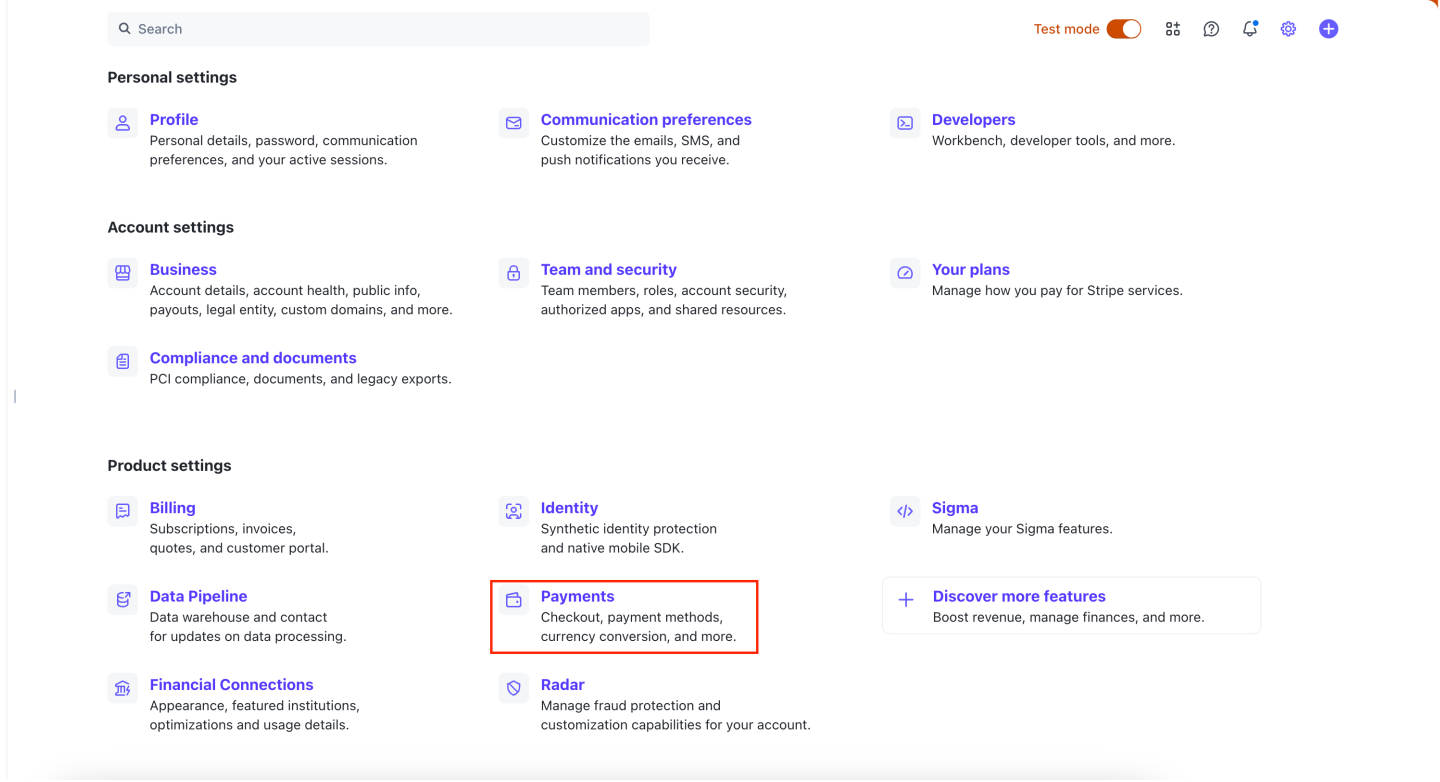
- Navigate to the Settings page by clicking the gear icon in the top-right corner.

- Click on the Payments setting.
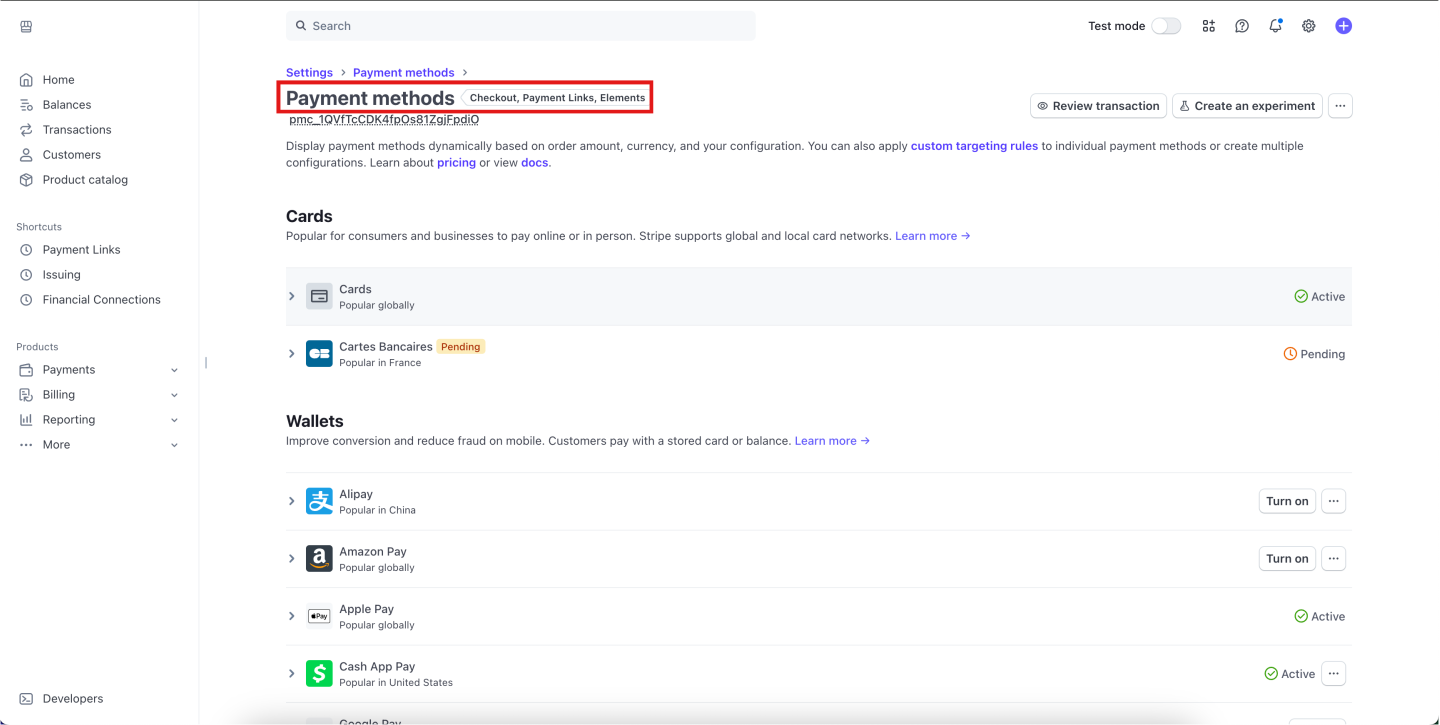
- Click on Payment Methods.

- Scroll through the list until you locate Affirm.
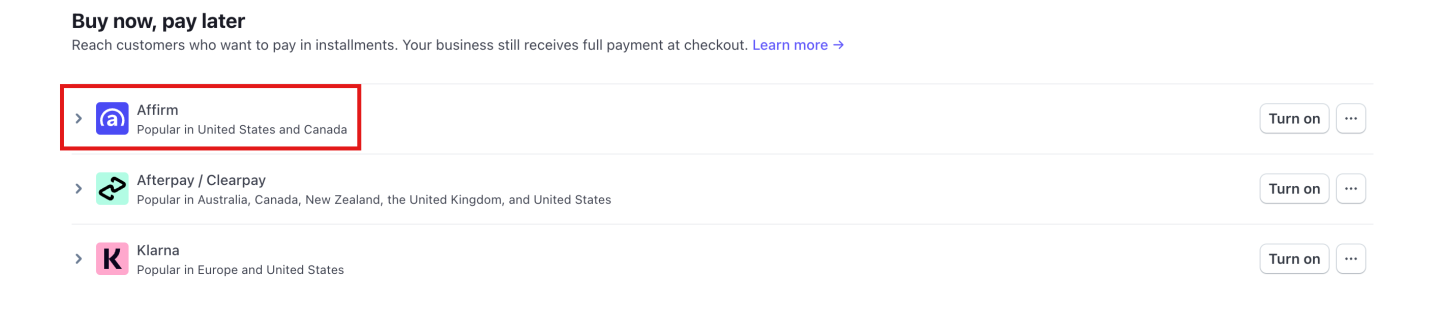
- Click Turn on.

Affirm Custom Rules
By clicking the button to the right of the Affirm line, merchants can configure custom rules for the following:

- Transaction Amounts: Allows the merchant to choose the cart floor and ceiling where Affirm will appear as an option.
Step 2: Select and implement your integration method
Stripe offers several ways to integrate Affirm depending on your checkout experience and development needs. Choose the method that best fits your use case, then follow the corresponding Stripe documentation to complete implementation.
2.1 Select your integration method
Stripe’s integration offerings include the following:
- Stripe Checkout: Prebuilt, hosted payment page that enables businesses to quickly accept payments with minimal development (Stripe Checkout Guide).
- Stripe Payment Elements: Prebuilt, embeddable UI component (Stripe Payment Elements Guide).
- Stripe Payment Links: Accept payments with shareable links (Stripe Payment Links Guide).
- Stripe Payment Intents API: A core Stripe API used to create, track, and manage a payment from start to finish (Stripe Payment Intents API Guide).
- Stripe Terminal: Use Stripe Terminal to accept in-person payments and extend Stripe payments to your point of sale (Stripe Terminal Guide).
- Stripe Connect: Fully customizable platform integration (Stripe Connect Guide).
Ecommerce integrations
Stripe Checkout (Stripe Checkout Guide)
Stripe Checkout is a prebuilt payment solution from Stripe that enables you to quickly accept payments using a hosted or embedded checkout page and provides the following functionality:
- A Stripe-hosted payment page that customers are redirected to for a secure checkout experience.
- Designed for fast implementation with minimal development, making it one of the easiest ways to start accepting payments.
- Supports one-time payments, subscriptions, discounts, taxes, and shipping out of the box.
- Automatically handles payment method selection, localization, and optimization for conversion.
- Built on Checkout Sessions, which manage the full payment flow and link to PaymentIntents or subscriptions.
- Offers basic customization (branding, colors, logo) without requiring a fully custom UI.
Stripe Payment Elements (Stripe Payment Elements Guide)
Stripe Payment Element is a prebuilt, embeddable UI component that enables businesses to accept multiple payment methods through a single, customizable checkout form and provides the following functionality:
- A single integration for 100+ payment methods (cards, wallets, bank debits, BNPL, etc.).
- Automatically handles input validation, error messaging, and secure data collection.
- Uses dynamic payment methods to display the most relevant options based on customer location, currency, and transaction details.
- Can be customized to match your site’s design using Stripe’s Appearance API.
- Works with Stripe’s core APIs (like Checkout Sessions or Payment Intents) to complete the payment flow.
Stripe Payment Links (Stripe Payment Links Guide)
Stripe Payment Links is a no-code feature from Stripe that enables businesses to create a shareable payment page via a simple URL and provides the following functionality:
- A payment link that is a reusable URL and takes customers to a Stripe-hosted checkout page.
- Can be utilized to sell products, subscriptions, or accept payments/donations.
- It requires no coding or website integration, just create the link and share it anywhere (email, text, social, etc.).
- Multiple customers can use the same link repeatedly, and Stripe handles the payment processing and tracking.
Stripe Payment Intents API (Stripe Payment Intents API Guide)
Stripe Payment Intents is a core Stripe API used to create, track, and manage a payment from start to finish, including any required authentication steps and provides the following functionality:
- A Payment Intent represents a single payment attempt and should typically be created for each order or checkout session.
- It tracks the full payment lifecycle, from creation through processing to success or failure.
- Automatically handles authentication flows (such as 3D Secure) when required by banks or regulations.
- Provides granular control for building fully custom checkout experiences, but requires more development effort than prebuilt solutions.
In-person payments
Stripe Terminal (Stripe Terminal Guide)
Stripe Terminal is a feature from Stripe that enables businesses to accept in-person payments using physical card readers or Tap to Pay devices, while integrating those payments into the same system used for online transactions. Stripe Terminal functionality includes:
- It enables businesses to accept in-person card payments (tap, insert, or swipe) using Stripe-supported readers.
- You can unify online and in-person payments in a single platform for reporting and management.
- It supports custom or existing point-of-sale (POS) systems through SDKs and APIs.
- Businesses can use pre-certified hardware or Tap to Pay on mobile devices to process payments securely.
- Stripe handles encryption, payment processing, and device management through its ecosystem.
Platform and marketplace payments
Stripe Connect (Stripe Connect Guide)
Stripe Connect is a feature from Stripe that enables platforms and marketplaces to manage payments between multiple parties. Stripe Connect functionality includes:
- Onboard and manage sellers or service providers (e.g., merchants, contractors).
- Accept payments from customers.
- Split or route funds to the appropriate parties.
- Handle compliance, identity verification, and payouts.
It’s commonly used by marketplaces to facilitate transactions between buyers and sellers without needing to build complex payment infrastructure from scratch.
2.2 Implement your integration method
After selecting your integration method, complete the implementation using Stripe’s documentation. Each integration has its own setup requirements and configuration steps.
Step 3: Set up the payment method messaging element
Stripe Payment Method Messaging (via Stripe Elements) is a UI component that lets you display Affirm to customers before checkout.
- It’s a prebuilt UI element that shows messaging for Affirm.
- The component automatically determines eligible payment plans based on factors like the customer’s location, currency, and purchase amount.
- It generates localized, dynamic messaging (e.g., installment pricing) and matches your site’s design.
- It can include an info modal with details about payment plans, terms, and how they work.
- It’s typically used on product, cart, or checkout pages to encourage conversion by highlighting flexible payment options.
Step 4: Test and go live
Review Stripe’s integration testing guide.
- Select Affirm as the payment method during Checkout and click Pay.
- Use test API keys to simulate the payment flow via the redirect page.
- Successful test case: Authenticate the payment → PaymentIntent changes from
requires_action→succeeded. - Failed test case: Close the Affirm modal → PaymentIntent changes from
requires_action→requires_payment_method.
- Successful test case: Authenticate the payment → PaymentIntent changes from
- In the Affirm sandbox, enter “0000” or “5678” if prompted for the last four digits of SSN.
- For manual capture in test mode, uncaptured PaymentIntents expire after 10 minutes.
Recommended topics
Updated 5 months ago