

Set up Adyen in-store
For merchants offering Affirm inside physical retail stores.
Overview
Affirm can be offered as an in-store payment method on Adyen payment terminals. Shoppers can complete the Affirm flow on their mobile device after scanning a QR code, or through an embedded Affirm terminal experience depending on device:
Requirements
Hardware
Affirm is supported on various Adyen terminals, please review Adyen’s terminal documentation for full availability.
Merchant requirements
- Affirm must be activated for In-Store in Adyen Customer Area.
- Merchant must be approved by Affirm.
- Merchant must support USD transactions (unless Affirm supports additional currencies in your region).
Integration steps
This section explains the two primary ways merchants can offer Affirm through Adyen for in-store and remote checkout workflows: Affirm for in-store (POS) and Affirm via Adyen Pay-by-Link. It outlines the setup requirements for each method, where configuration occurs in the Adyen Customer Area, and how Affirm becomes available to shoppers.
Affirm for in-store (POS)
Step 1: Enable through Adyen Customer Area
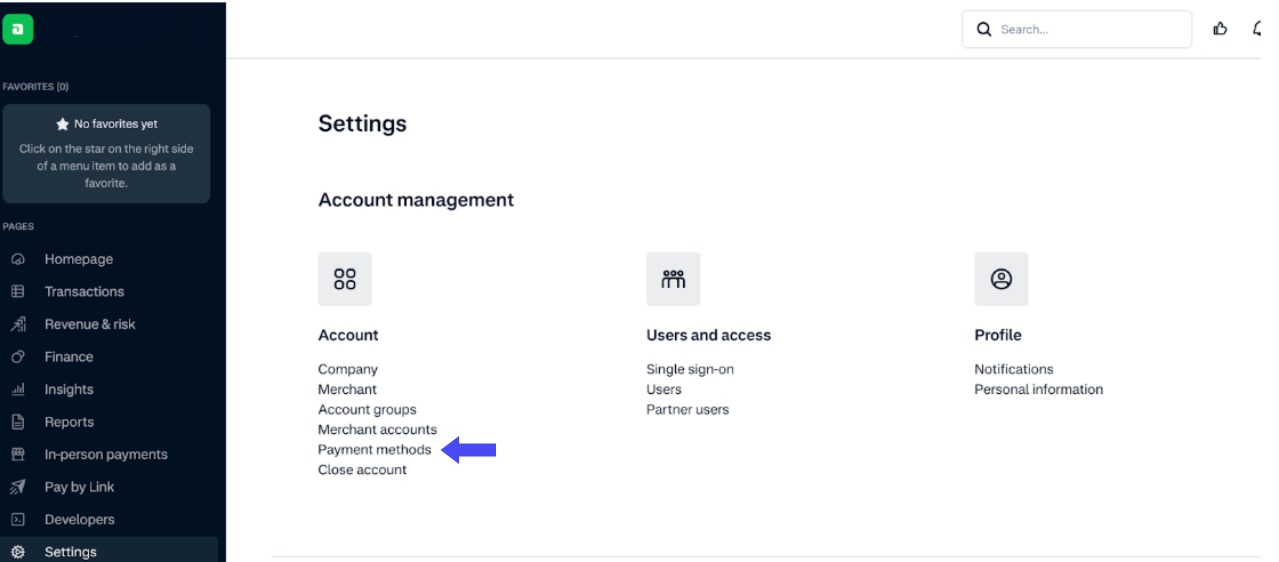
- Log in to Adyen Customer Area.
- Navigate to Payment Methods.
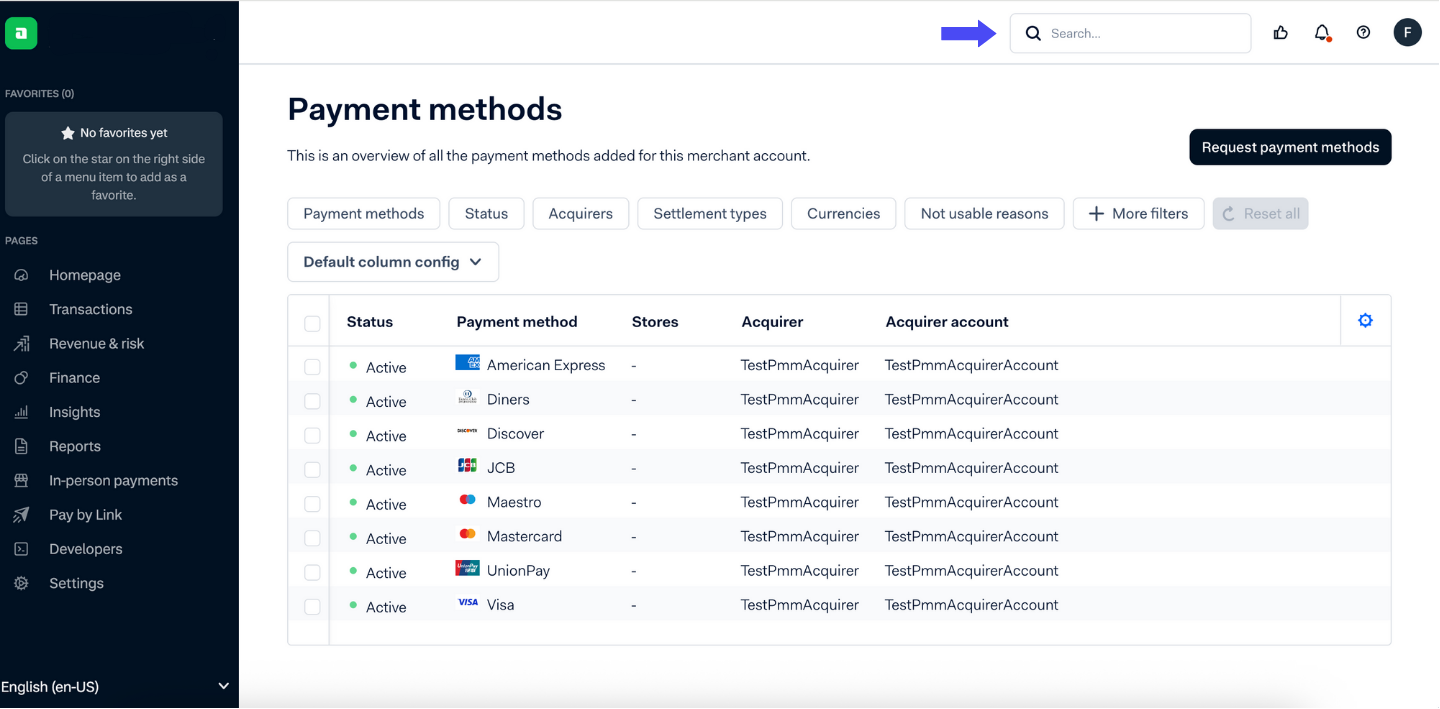
- Search for Affirm.
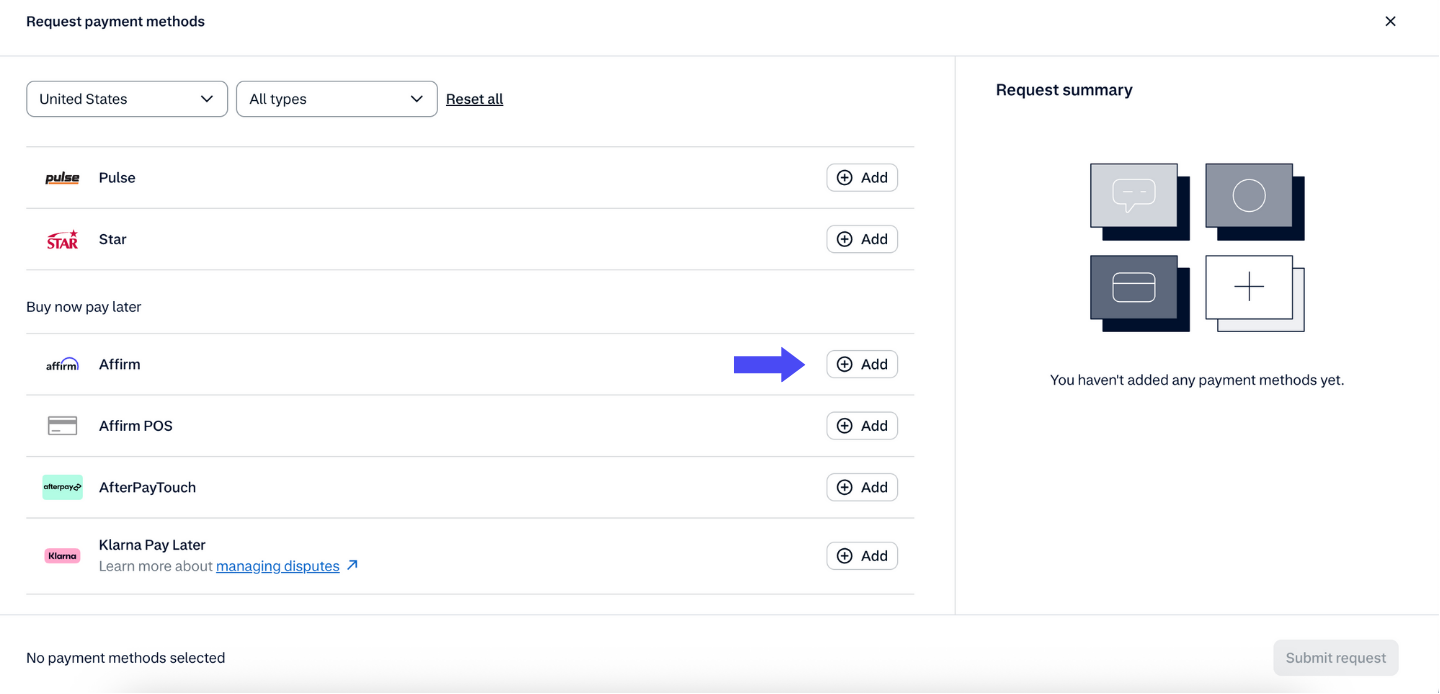
- Click Add.
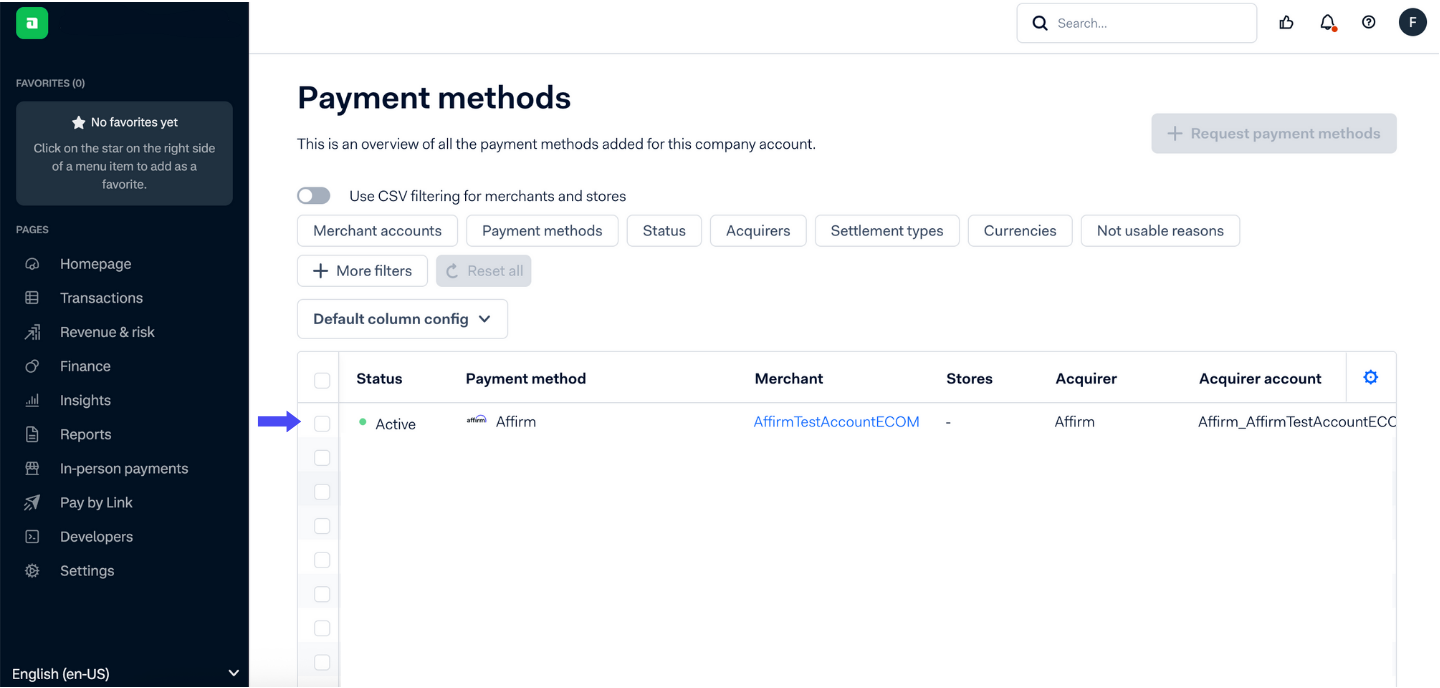
- Choose the merchant account(s) where Affirm should be available.
Checkout flow
1. Ring up the customer
- Begin by ringing up the customer’s purchase at the register.
- Once the total is confirmed, proceed with the checkout process.
2. Prepare the Adyen standalone terminal
- Pick up the Adyen standalone payment terminal.

- On the terminal screen, tap Start to begin a new transaction.
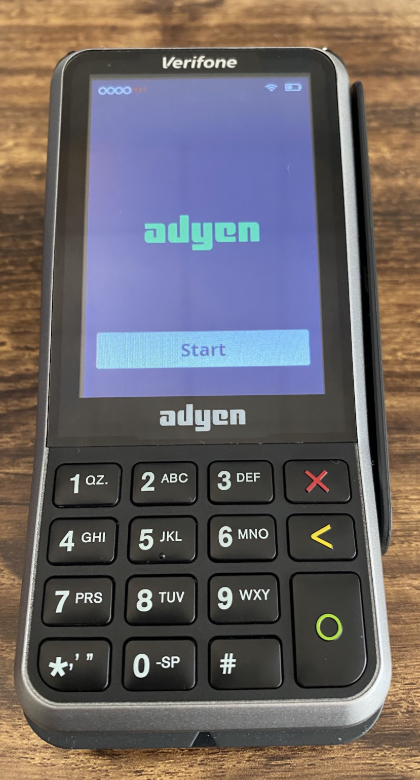
3. Enter the purchase amount
- Type in the full purchase amount exactly as it appears at the register.
- Confirm the value on the screen before moving forward.
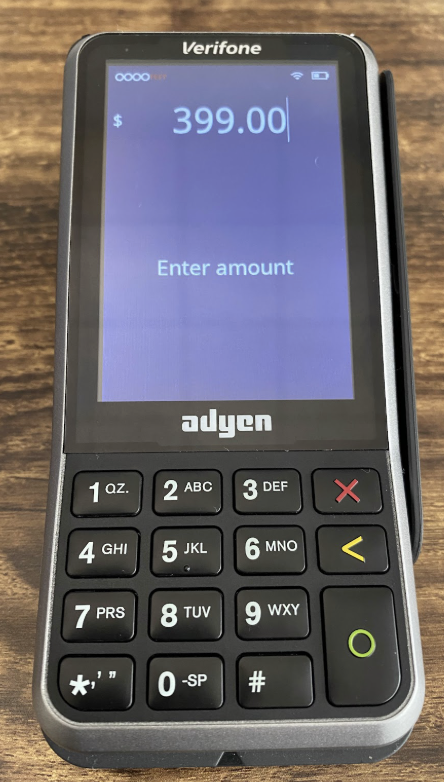
4. Select payment method
- From the terminal options, choose Scan.

- Under Scan, select the Affirm wallet option.

- The terminal will then generate a unique QR code for the transaction.
5. Customer scans the QR code
- Turn the terminal toward the customer so the QR code is clearly visible.
- The customer opens the camera or Affirm app on their smartphone.
- They scan the QR code to continue the checkout process on their own device.
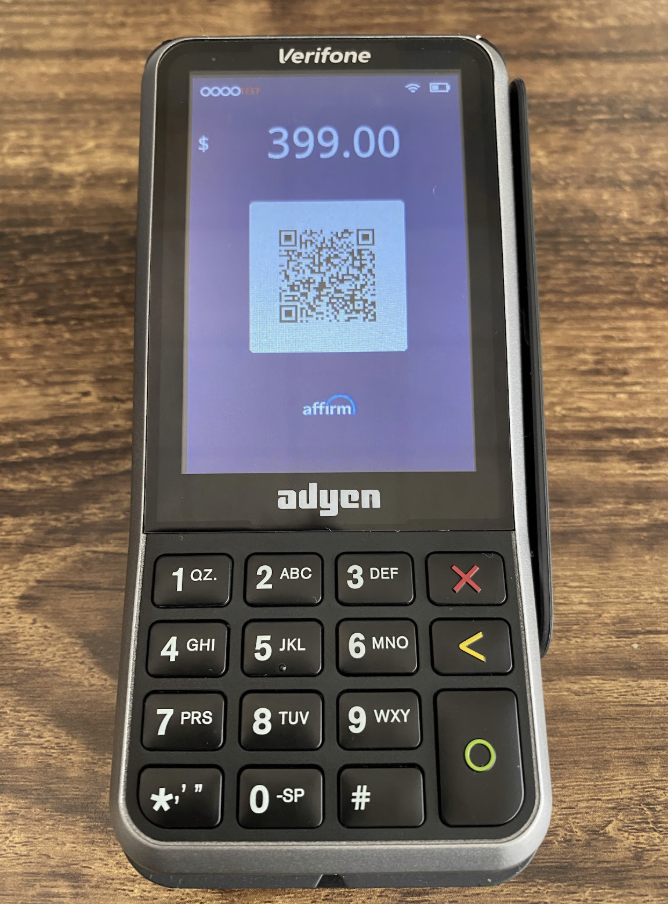
6. Customer completes Affirm checkout on their Phone
- After scanning, the customer is redirected to Affirm's checkout flow.
- They review their loan terms, choose a payment option, and complete the approval steps.
Affirm via Adyen Pay-by-Link (in-store, remote checkout, and telesales)
Affirm can be offered in-store using Adyen Pay-by-Link, which allows a store associate to generate a payment link that the shopper completes on their own device. This enables Affirm even when:
- The terminal does not support Affirm natively.
- The merchant wants a “mobile-first” in-store checkout experience.
- The customer is paying remotely (e.g., curbside pickup or phone order).
- The merchant wants to avoid QR-code scanning flows.
This is not a terminal payment — instead, it uses Adyen’s Online Payments platform while still supporting in-store transaction use cases. To learn more about Adyen Pay-by-Link, please review Adyen’s guide.
Create a Pay-by-Link with Affirm enabled
To create a Pay-by-Link that includes Affirm:
- Go to Adyen Customer Area → Pay by Link → Create Payment.
- Enter amount, currency, and shopper information.
- Ensure that Affirm is enabled as an online payment method for this merchant account.
- Generate link.
- Provide link to shopper (SMS, QR, or email).
Affirm will automatically appear on the hosted checkout page if:
- It is activated in the merchant account.
- The transaction currency is supported (typically USD).
- Shopper data is complete enough for Affirm to authorize.
Recommended topics
Updated 10 months ago