
FAQ sur BigCommerce
Obtenez des réponses aux questions les plus fréquentes concernant votre intégration BigCommerce.
Si j'utilise un thème personnalisé, où puis-je trouver l'ID du sélecteur pour la messagerie promotionnelle de la page du produit et du panier?
Pour les thèmes personnalisés, nous avons besoin d'un ID du sélecteur ,afin que la messagerie promotionnelle Affirm puissent être facilement ajoutés aux pages du produit et du panier. Vous pouvez utiliser un ID du sélecteur existant ou un nom de classe disponible dans vos fichiers de thème. Pour trouver l'ID du sélecteur, cliquez avec le bouton droit sur le prix dans un navigateur Chrome et sélectionnez Inspecter.
Cliquez avec le bouton droit sur le prix et sélectionnez à nouveau Inspecter pour que l'inspecteur se concentre sur l'élément price. Vous verrez quelque chose de similaire à l'exemple ci-dessous.
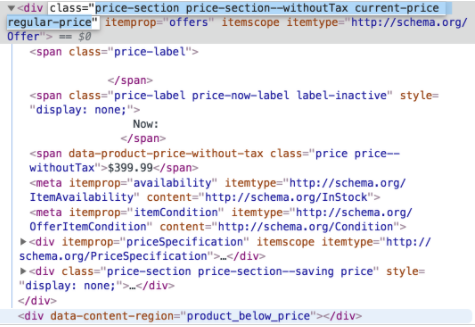
Dans cet exemple, vous copiez price price--withoutTax dans le champ ID du sélecteur. Il est important de noter que s'il y a des espaces dans le nom de la classe, comme price price, il faut les remplacer par « . » pour que le texte final dans le champ ID du sélecteur se lise : price.price--withoutTax.
Vous pouvez également accéder à Vitrine > Mes thèmes et sous Options avancées, cliquer sur Modifier HTML/CSS et rechercher des modèles liés aux produits et aux paniers. En général, ces fichiers sont nommés product-view.html, product.html, cart.html, cart-view.html, etc. Utilisez n'importe quel nom de classe ou ID existant après lequel vous souhaitez ajouter le message promotionnel. Dans l'exemple ci-dessous, productView-price est quoi est utilisé comme ID de sélecteur :
*<div class="productView-price">\
    ......\
    .....\
</div>*
Si aucune des classes ou ID existants des modèles de produit/panier ne fonctionne, vous pouvez également ajouter un autre div dans votre modèle juste en dessous du product ou cart-price et utiliser cet ID, customAffirmPromoContainer, comme ID de sélecteur. Ex : <div id="customAffirmPromoContainer"></div>
Prix de la page produit
Si la sélection de la variante d'un produit modifie le prix total du produit et que le message marketing Affirm n'est pas mis à jour en conséquence, vous devrez utiliser les paramètres Product Page Price et Product Page Options . Les deux options sont disponibles en cliquant avec le bouton droit et en inspectant les éléments respectifs sur la page du produit.
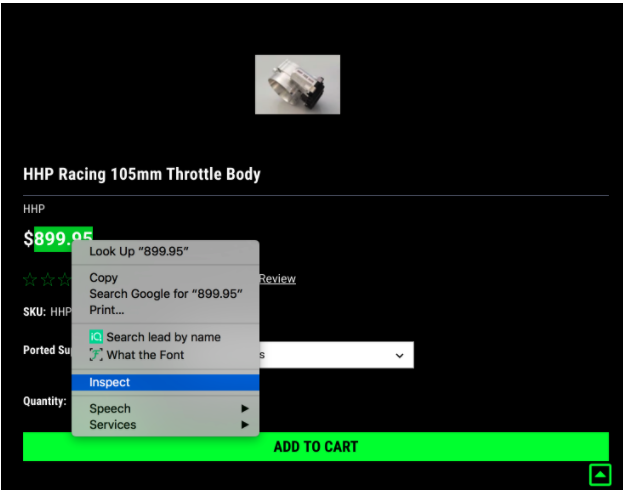
Pour trouver le champ ID du prix de la page de produit, cliquez avec le bouton droit sur le prix total de l'article sur la page du produit et cliquez sur Inspecter comme pour trouver l'ID du sélecteur. Faites un clic droit sur le prix total de l'article et cliquez à nouveau sur Inspecter pour le centrer.
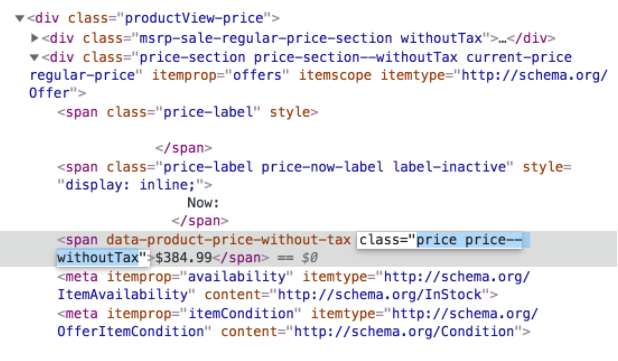
Le texte de l'image suivante est le code responsable de la modification du prix; dans ce cas, la classe que nous voulons copier est la même que l'ID du sélecteur (price price--withoutTax”), car c'est la « classe » dans laquelle se trouve l'élément Price.
Copiez le nom de la classe et collez-le dans le champ ID du prix de la page de produit. Comme pour l’ID de sélection, remplacez les espaces par "." - le texte final dans le champ ID du prix de la page produit doit se lire comme suit : price.price--withoutTax.
Options de la page produit
Pour trouver le Product Page Options ID, nous suivrons le même processus d'inspection de l'élément de la page. Faites un clic droit et inspectez l'une de vos options qui modifiera le prix. Dans l'exemple ci-dessous, car les options sont sélectionnées dans un menu déroulant, nous inspectons le menu qui indique Choisir des options .
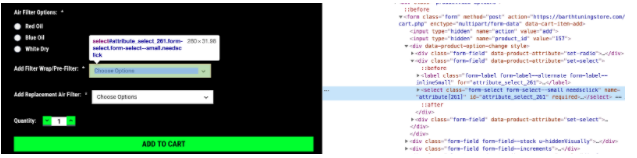
Cliquez avec le bouton droit sur le menu déroulant et cliquez à nouveau sur Inspecter pour le centrer. Dans cet exemple, vous pouvez voir qu'il existe plusieurs options qui modifieront le prix, comme Ajouter un emballage de filtre/préfiltre ou Ajouter un filtre à air de remplacement.
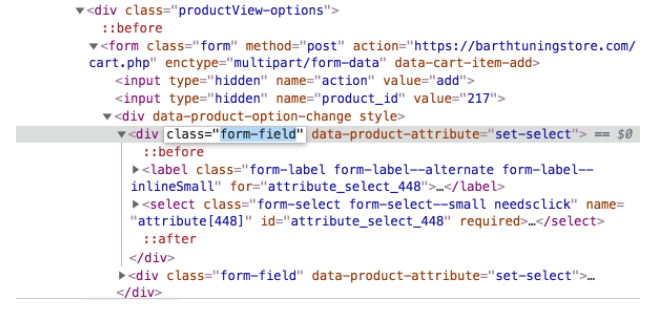
Dans cet exemple, nous sélectionnerons form-field parce que le prix est suivi de l'élément </div>, ce qui signifie que vous voudrez utiliser la classe suivie de <div>.
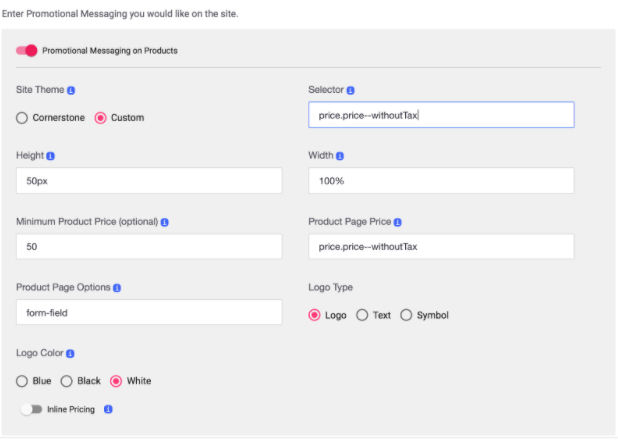
Copiez le nom de la classe et collez-le dans le champ ID des options de la page de produit, afin qu'elle puisse lire form-field. Les sections remplies doivent ressembler à ce qui suit :
Mis à jour 11 months ago