
Transaction management with Jobs in SFCC
Learn about managing transactions with jobs in Salesforce Commerce Cloud (SFCC).
Country Availability
 USA
USA
 Canada
Overview
Processing orders (authorize, void, refund) in SFCC updates the order status in the Affirm dashboard. While you can process orders in the dashboard, we strongly recommend using SFCC to keep your order statuses synced with Affirm.
Setting up order management functions
To set up your order management functions, you must import XML files from the downloaded cartridge and enable each job (function).
- Confirm if you imported XML files from the downloaded cartridge.
- You would have uploaded the files, which are included in
affirm.zip, during Install Affirm on SFCC. - If you didn’t, go to Import the XML files to complete the steps. Note: Some functions might not be available in older versions of the cartridge.
- In the Business Manager, go to Administration > Operations > Jobs.
- Verify that each imported job was created.
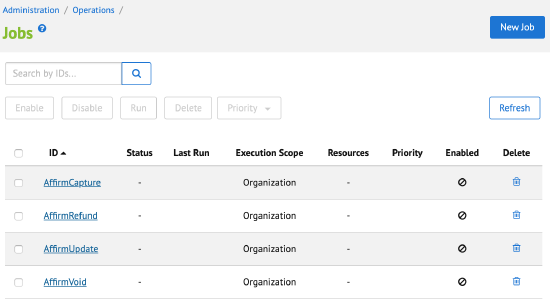
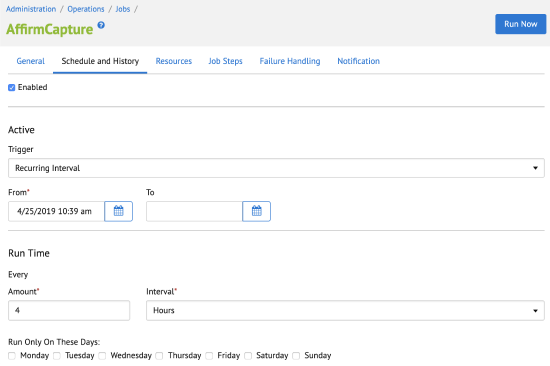
- For each job, confirm that the Enabled checkbox is selected, and set the interval.
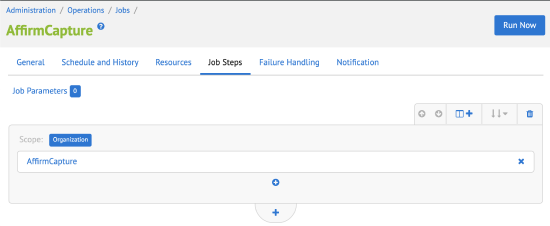
- In the Job Steps tab, ensure your site is included in the Scope field.
Process transactions in the DashboardLearn more about processing transactions in the Merchant Dashboard.
Using external interfaces
Commutation between Affirm and SFCC is based on the Affirm REST API. All outside traffic from the SFCC instance is handled by HTTPS protocol. In the SFCC Platform, each API call to Affirm is wrapped into a Service that handles monitoring and logging functionality.
Processing transactions
When a customer completes a checkout with Affirm as the payment method, Affirm authorizes a charge for the amount of the order. The charge enters a pending state on the customer's Affirm account. Authorized charges expire when you don’t capture them before the capture deadline, which is a period specified in your partnership agreement with Affirm. If you didn’t define your authorization timing requirements because of inventory, pre-orders, or shipping time in your onboarding form, please contact your Client Success Manager.
After Affirm authorizes a charge, you can capture, void, and refund in SFCC.
Capture
When you capture a charge, the system:
- Charges the authorized amount to the customer's Affirm account.
- Begins the customer's billing cycle.
- Triggers the transfer process of funds from Affirm to the merchant.
Typically, merchants capture a charge after fulfilling the order. If you usually fulfill orders within 5 business days, we recommend auto-capturing orders so that the customer receives their purchase before their first bill.
- In the Business Manager, go to Merchant Tools > Ordering > Orders.
- Click on the order.
- Set Shipping Status to Shipped.
A manually run or periodically running job captures the charge.
Void and refund
When you haven’t yet captured a charge, you can cancel its authorization by voiding it. If you already captured a charge, you can reverse it and refund the amount to the customer's Affirm account. Note: Voiding or refunding a charge is irreversible and Affirm is unable to reinstate those funds.
- In the Business Manager, go to Merchant Tools > Ordering > Orders.
- Click on the order.
- Set the Order Status to Cancelled.
To refund or void a charge, you can run a batch job based on the Affirm Status of the order before cancellation.
Set up recurring jobs
SFCC can perform the Capture, Void, Refund actions based on either manual or recurring jobs.
To create recurring jobs:
-
In the Business Manager, go to Administration > Operations > Jobs.
-
Click the specific order management function (job) you wish to configure (e.g.,
AffirmCapture,AffirmRefund, orAffirmVoid).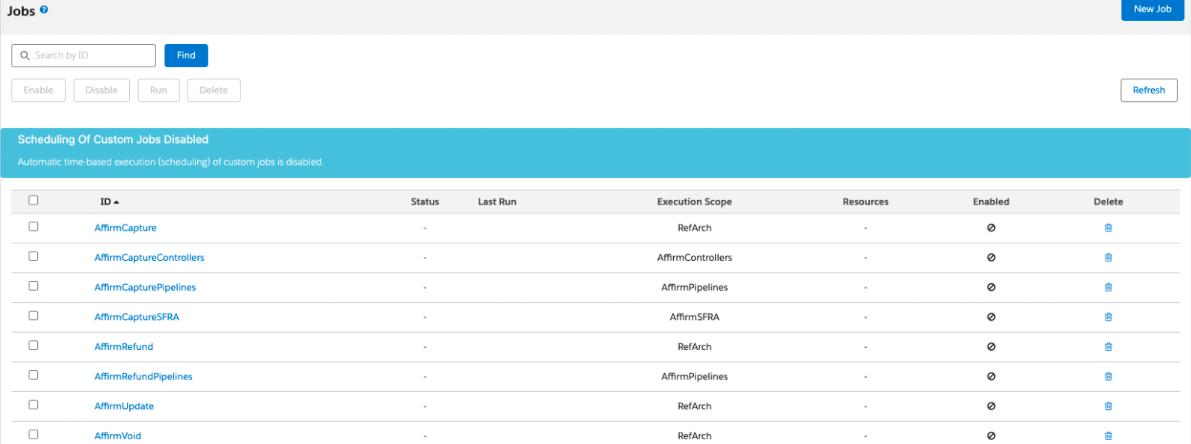
-
Select the Job Steps tab to ensure the parameters are correct.
-
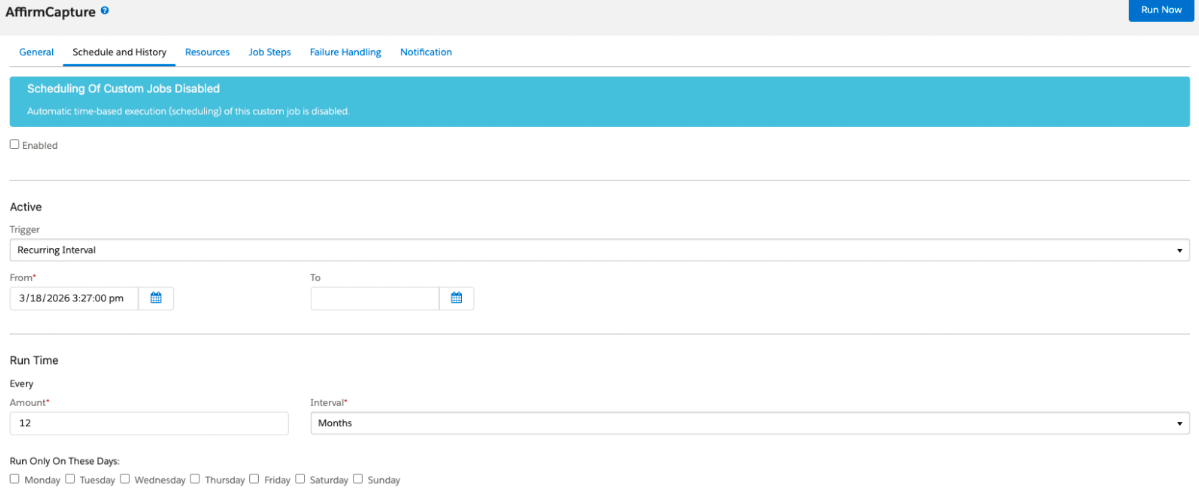
Select the Schedule and History tab to set your Recurring Interval and enter your timing preferences.
-
Ensure the job is set to Enabled and click Run or Save to activate the schedule.
Viewing processed transactions
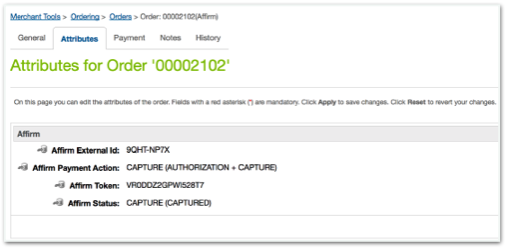
In Business Manager, go to Merchant Tools > Ordering to view all processed orders. For orders bought with Affirm as the payment method:
- Attributes Tab: The Attributes tab contains the Affirm payment details.
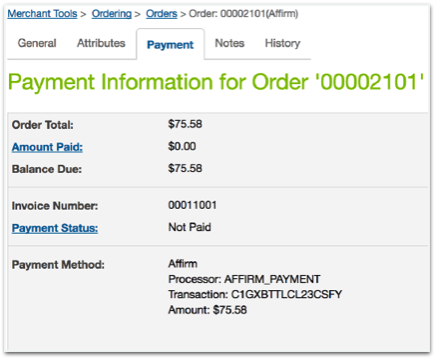
- Payments Tab:
- The order payment shows as Not Paid (pre-capture.)
- If you configure auto-capture, the payment shows as Paid.
Updated 7 months ago