
Set up WooCommerce
Add Affirm to WooCommerce with minimal setup. Learn requirements, install the plugin, configure checkout, enable messaging, test, and manage transactions.
Country Availability
 USA
USA
 Canada
 UK
UK
Overview
WooCommerce enables merchants to add Affirm as a payment method through the official Affirm WooCommerce extension.
Once configured, your WooCommerce store can:
- Display Affirm as a payment option at checkout
- Process Affirm charges through WooCommerce order management
- Display Affirm promotional messaging across your storefront
- Manage captures, voids, and refunds directly from the WooCommerce admin panel
The integration requires minimal development effort and can be installed through the WordPress plugin system.
Eligibility and requirements
Affirm requirements
Before enabling Affirm on WooCommerce:
- Your business must be approved by Affirm
- You must obtain your Affirm Public Key and Private API Key from the Affirm merchant dashboard
- Financing disclosures must use Affirm-approved language
- Your checkout must collect required shopper identity information
WooCommerce requirements
Your store must meet the following requirements:
- A WordPress site with WooCommerce installed
- Access to the WordPress admin dashboard
- Permission to install WordPress plugins
- Access to WooCommerce payment settings
Integration steps
Step 1: Install the Affirm WooCommerce extension
- Download the Affirm WooCommerce extension.
- Log in to your WordPress Admin dashboard.
- Navigate to Plugins → Add New.
- Click Upload Plugin.
- Click Choose File and select the downloaded extension file.
- Click Install Now.
- Click Activate to enable the plugin.
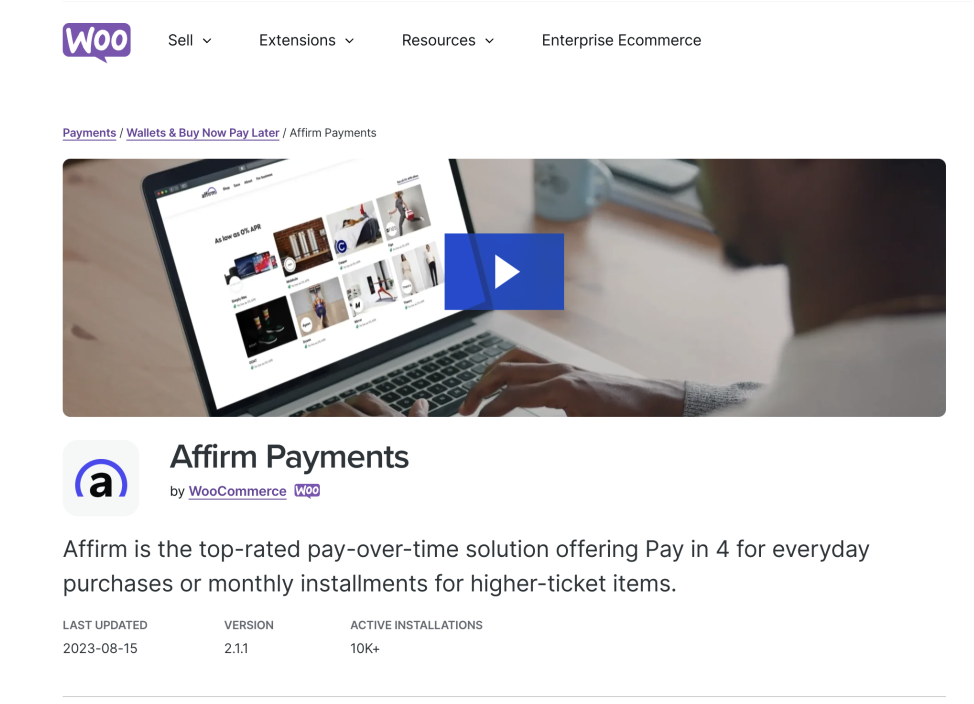
After activation, Affirm becomes available as a payment method within WooCommerce.
Step 2: Enable Affirm in WooCommerce
- In your WordPress Admin dashboard, navigate to: WooCommerce → Settings → Payments.
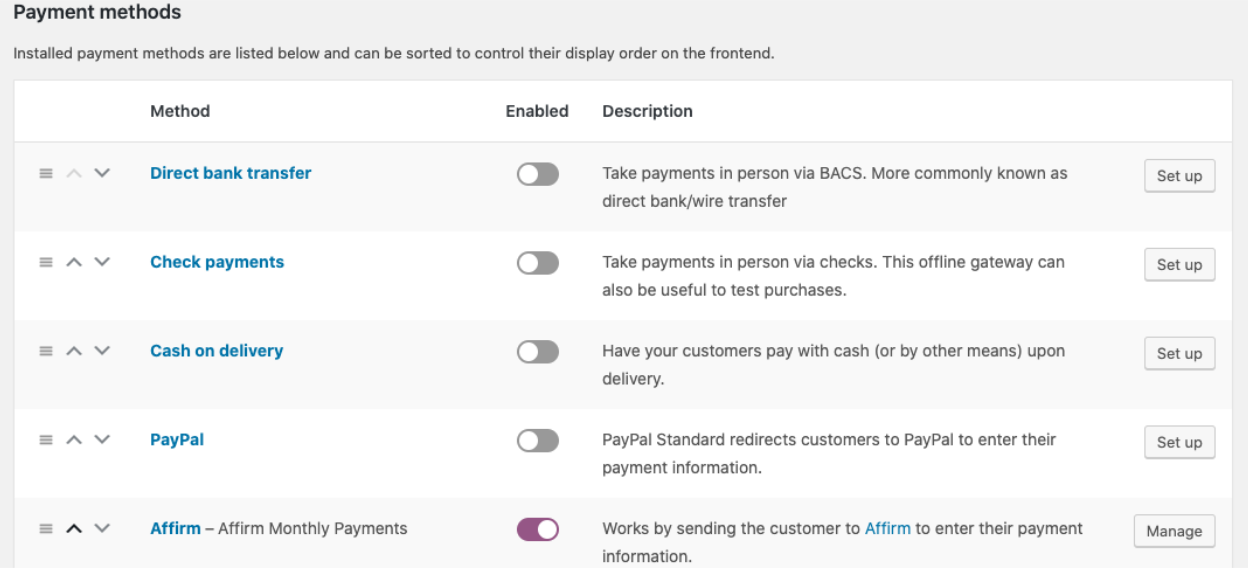
- Locate Affirm in the list of payment methods.
- Click Manage (or select Affirm) to open the configuration page.
- Toggle Enable Affirm to activate the payment method.
If shown, keep the default values unless instructed otherwise:
Title:
Affirm Pay over time
Description:
You will be redirected to Affirm to securely complete your purchase. It's quick and easy—get a real-time decision.
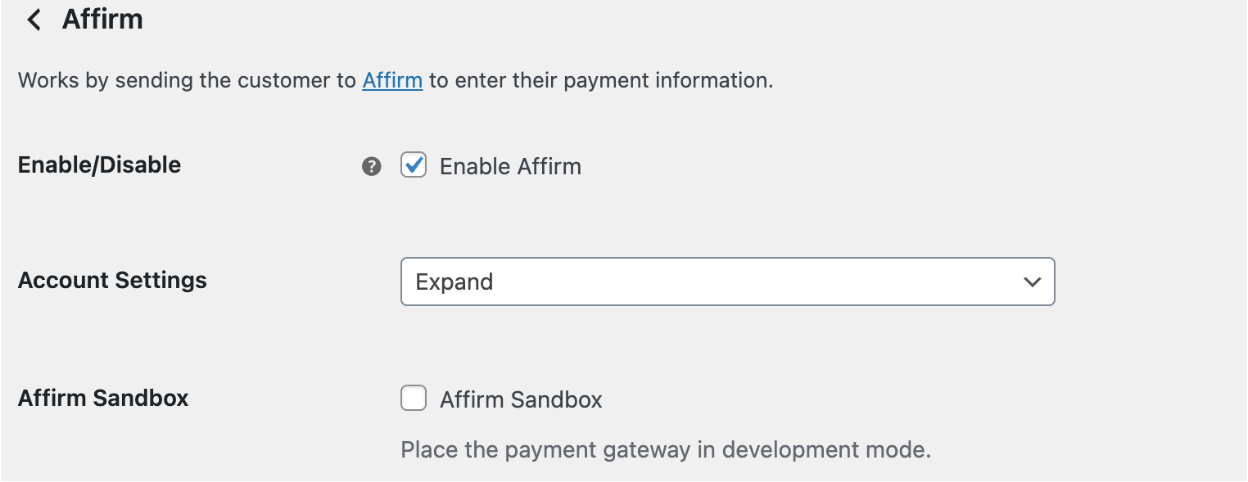
Step 3: Configure Affirm account settings
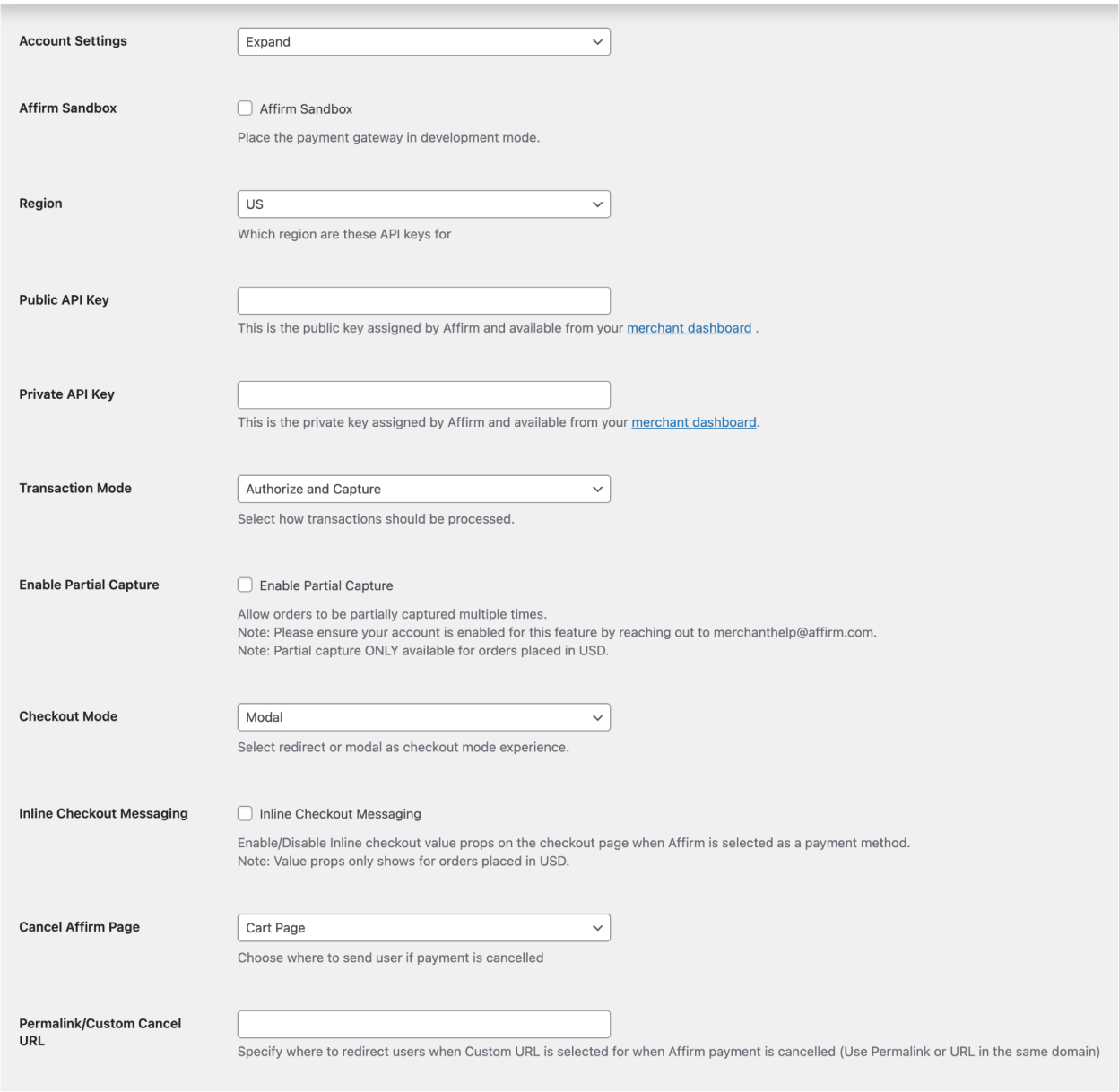
- Select Expand under Affirm Account Settings.
- Enable Affirm Sandbox if you are testing your integration.
- Set your Region (for example, select US for US stores).
- Enter your Affirm Public Key from the Affirm merchant dashboard.
- Enter your Affirm Private API Key from the Affirm merchant dashboard.
- Select the Language Selector behavior:
- Site Language
- Browser Language
Step 4: Configure checkout behavior
- Select a Transaction Mode:
- Authorize
Only authorizes the payment. - Authorize and Capture
Authorizes and captures payment automatically.
- Authorize
- Enable Partial Capture only if instructed by Affirm support.
- Select a Checkout Mode:
- Modal: Displays an Affirm pop-up during checkout.
- Redirect: Redirects the customer to Affirm checkout.
- Enable Inline Checkout Messaging to display Affirm financing messaging during checkout.
Step 5: Configure checkout cancellation behavior
- Choose where customers are redirected if they cancel Affirm checkout:
- Cart Page: Takes customer to cart.
- Payment Page: Takes customer back to payment.
- Checkout Page: Takes customer back to checkout.
- Custom URL: Takes customer to custom URL.
- If Custom URL is selected, enter the Permalink / Custom Cancel URL.
Step 6: Configure promotional messaging
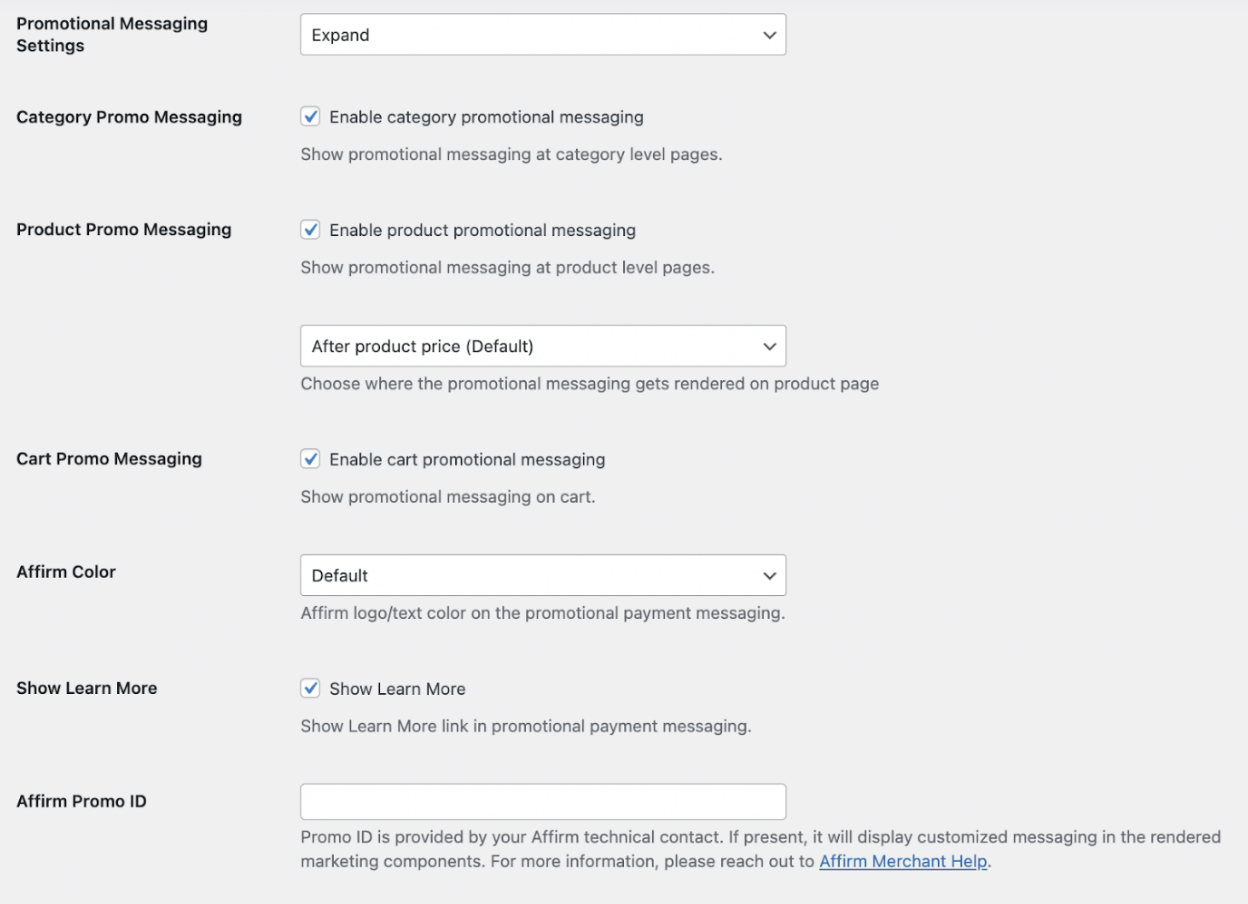
- Expand Promotional Messaging Settings.
- Configure how Affirm promotional messaging appears across your store. Below are some promotional messaging options:
- Check to Enable category promotional messaging to include promotional messaging on category level pages.
- Check to Enable product promotional messaging to include promotional messaging on product level pages and select placement of product page messaging. (if unsure, select After Product Price.)
- Check to Enable cart promotional messaging to include promotional messaging on category level pages.
- Select an Affirm Color - Blue, Black, or White for the logo.
- Check Show Learn More to display a link in Affirm monthly payment messaging.
- Enter your Affirm Promo ID (optional) to display Affirm with different styling, messaging, or loan terms. Only enter a Promo ID if instructed by Affirm.
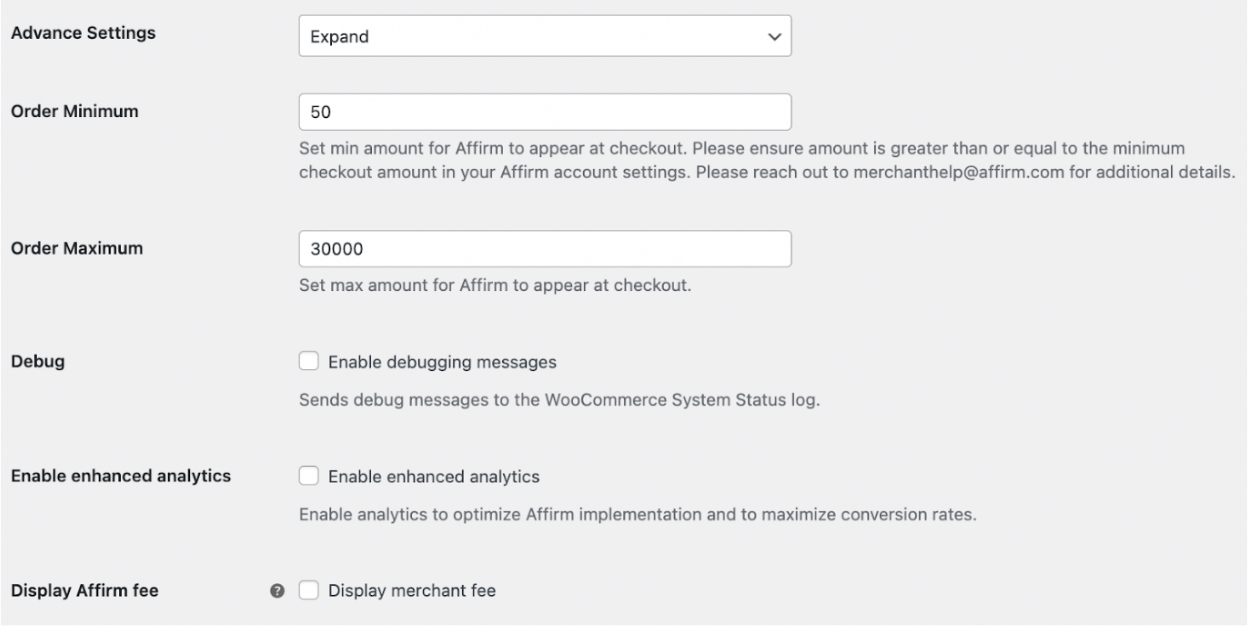
- (Optional) Select Expand next to Advanced Settings.
- Set Order Minimum – set minimum cart total to display Affirm as a payment option. If unsure, leave the default value of $50.
- Set Order Maximum – set maximum cart total to display Affirm as a payment option. If unsure, leave the default value of $30000.
- Select Enable Debugging messages if troubleshooting. Otherwise, leave disabled.
- Leave Enable Enhanced Analytics unchecked.
- Check to Display Merchant Fee. If unsure, leave the default.
- Save your configuration settings.
Promotional messaging helps increase awareness of Affirm financing options before checkout.
Step 7: Test the integration
Affirm sandbox
Disable when testing is complete.
Before going live:
- Enable Sandbox mode.
- Enter sandbox API credentials.
- Place a test order using Affirm.
- Confirm checkout flow, authorization, and capture behavior.
Step 8: Go live
When testing is complete:
- Disable Sandbox mode.
- Enter your live Affirm API credentials.
- Save settings.
- Begin accepting live Affirm payments.
Inline checkout
Inline support
- Inline is available for our Installment, Pay in 4, and Hybrid financing options.
- Affirm Lite and Adaptive Checkout are not supported at this time.
When a customer selects Affirm as a payment option, the view expands and renders the following information in your site:
- Value props: Highlights some of the benefits of paying with Affirm.
- Learn more about Affirm: A learn more link that opens our educational modal.
- Payment timelines: The timeline and amount for each payment.
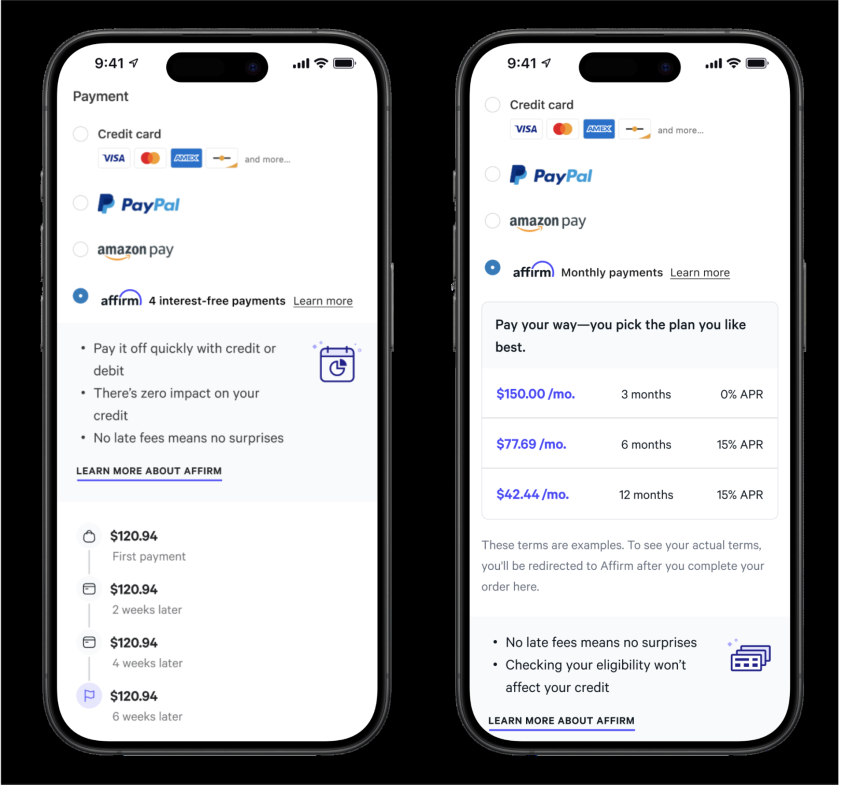
This image displays the Inline flow for Pay in 4 and Installment options.
Processing Affirm transactions
When a customer selects Affirm at checkout, Affirm authorizes the charge and places it in a pending state until captured.
Merchants can manage transactions directly within WooCommerce.
Capture a charge
Capturing a charge:
- Charges the authorized amount to the customer’s Affirm account.
- Starts the customer’s billing cycle.
- Initiates the transfer of funds from Affirm to the merchant.
Merchants typically capture charges after fulfilling the order.
Void a charge
If a charge has not been captured:
- Locate the order in WooCommerce.
- Select Void authorization.
Voiding cancels the authorization and the transaction cannot be reinstated.
Refund a charge
If a charge has been captured:
- Locate the order in WooCommerce.
- Select Refund.
Refunds must occur within 120 days of capture and are irreversible.
Partial refund
You can issue a partial refund for a captured transaction within 120 days of capture.
Partial Capture
Partial Capture allows merchants to capture portions of an authorized transaction as items are shipped. This is especially useful for multi-item orders that are fulfilled at different times, allowing you to capture payment only for the items that have been shipped while keeping the remaining authorization open.
You can learn more about Partial Capture, here.
Recommended Topics
Updated 7 months ago
Other helpful resources
Nice work on successfully setting up your Affirm integration! Next, you may want to learn about processing transactions with us. You can also checkout our WooCommerce FAQs for answers to some common questions Affirm + WooCommerce integration.