
Checkout Button
Learn more about our pre-styled Checkout button, which makes implementing Affirm even easier.
Country Availability
 USA
USA
 Canada
 UK
UK
Overview
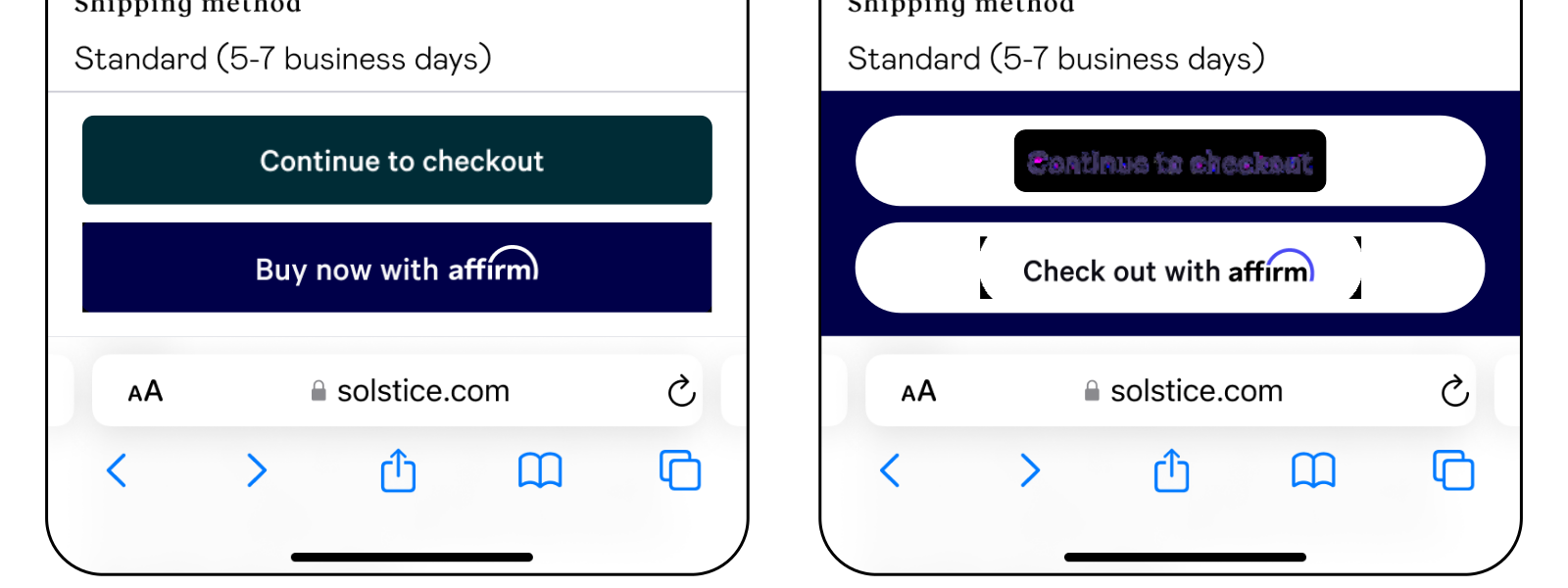
To streamline the Affirm implementation process, we offer a pre-styled checkout button that you can use on your website. The available attributes enable you to adjust the button size, shape, color, and more to help meet your business needs.
Steps
1. Update your site
Add the affirm-checkout-button-container class to a container div on your website. Affirm.js then renders the <affirm-checkout-button> custom element button inside the container.
2. Add attributes
Use the available attributes to indicate the page type and to adjust the button style. For details, see the Affirm.js Reference section below.
3. (Optional) Call the function
Call affirm.ui.checkoutButton.render() to automatically render Affirm checkout buttons for all containers on the page with the affirm-checkout-button-container class.
Note: If you add a new button container later on, you may need to call the function again manually in Single Page Applications (SPAs).
Affirm.js Reference
The button can be styled using the following attributes:
| Attribute | Description |
|---|---|
| data-page-type required | Indicates which page type the button displays on. Values:
|
| data-size optional | Sets a button size. Values:
|
| data-full-width optional | Boolean attribute that sets the button to expand to 100% of its parent container's width. |
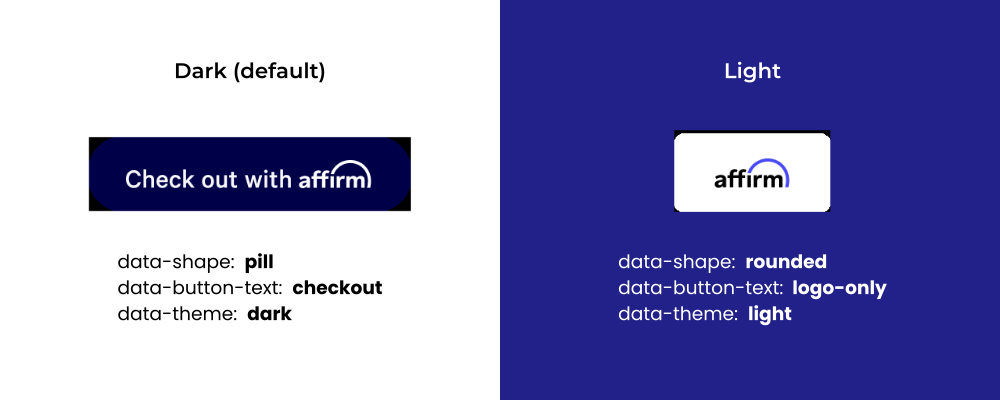
| data-theme optional | Sets the button to display in dark theme or light theme. Values:
|
| data-shape optional | Sets the button shape. Values:
|
| data-button-text optional | Sets the contents of the button. Values:
|
Examples
Default button styling on a product page:
Full-width button:
Styled button with checkout text:
Styled logo-only button:
Passing locale fr_CA:
Recommended Topics
Updated 5 months ago