
Using Partial Capture in SFCC
Learn how to enable partial capture in Salesforce Commerce Cloud (SFCC) to collect different parts of a multi-item order at different points in time.
ImportantBefore proceeding with the change in settings, reach out to [email protected] to verify if your account is enabled for Partial Capture.
Overview
This guide assumes that the existing storefront has a working integration with the Affirm cartridge which accepts payment via the Affirm payment processor. Therefore, the transaction management module is only applicable for orders processed by the Affirm payment processor and not via the VCN integration.
Steps
1. Download the Affirm cartridge
- Download the latest version of Affirm cartridge from the Salesforce LINK Marketplace.
- Upload the cartridge into the SFCC server for the code version of your current workspace and environment.
2. Import the metadata
After you upload the cartridge, you must import the metadata that’s in the following directory: metadata/affirm/meta/system-objecttype-extension.xml.
- In the Business Manager, go to Administration > Site Development > Site Import & Export.
- Select the local radio button.
- Click Choose File and select the XML file in the directory:
metadata/affirm/meta/system-objecttype-extension.xml. - Once the upload finishes, click Import to complete importing the metadata.
3. Activate the Business Manager module
- In the Business Manager, go to Administration > Sites > Manage Sites > Manage the Business Manager Site.
- In the cartridge input field, add
bm_affirm:int_affirm. - Click Apply.
Transaction Management
To manage transactions for partial capture:
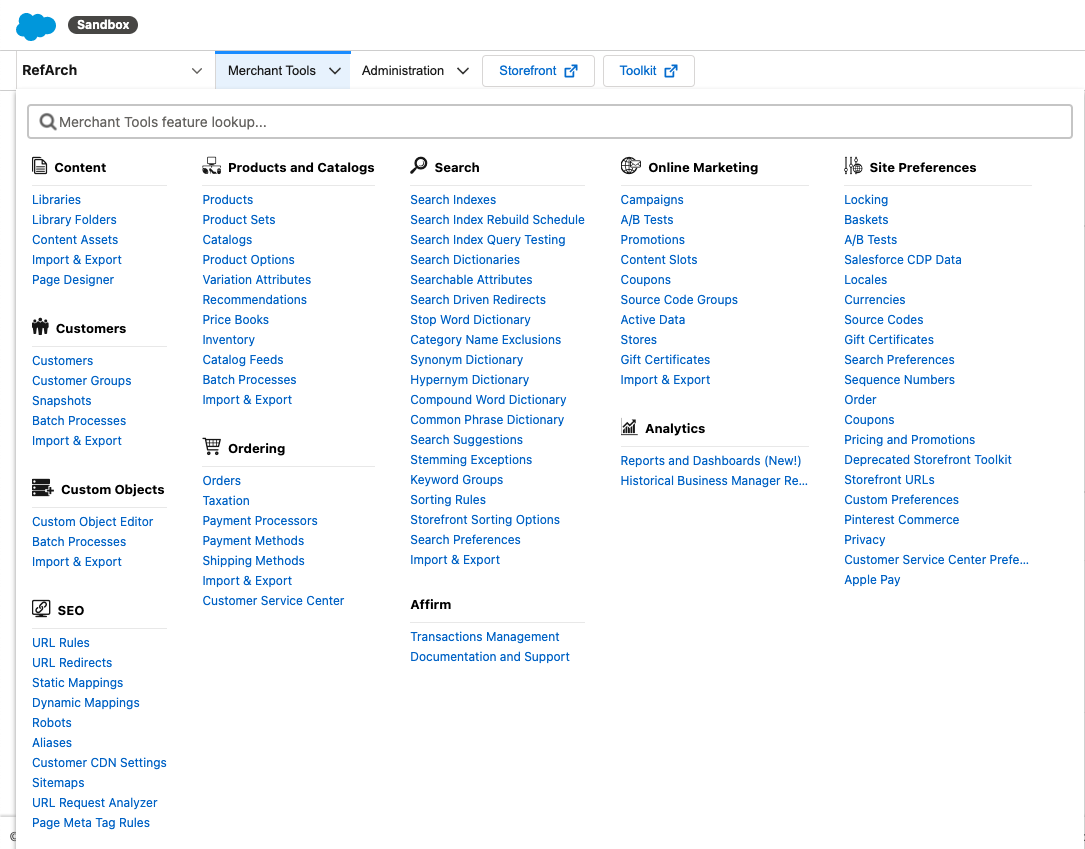
- Go to Merchant Tools and select Transaction Management under the Affirm submenu.
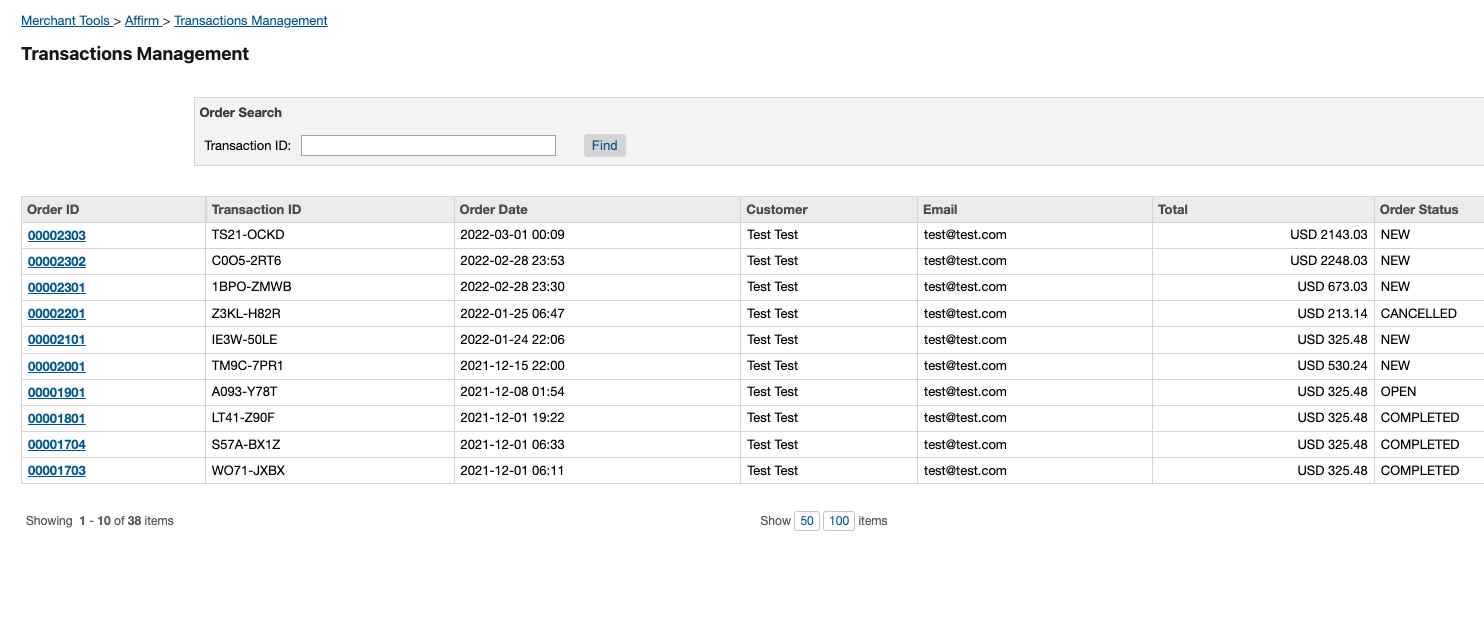
- On the Order List page in Transaction Management, click on an order to view details or search for an order by the Affirm transaction ID.
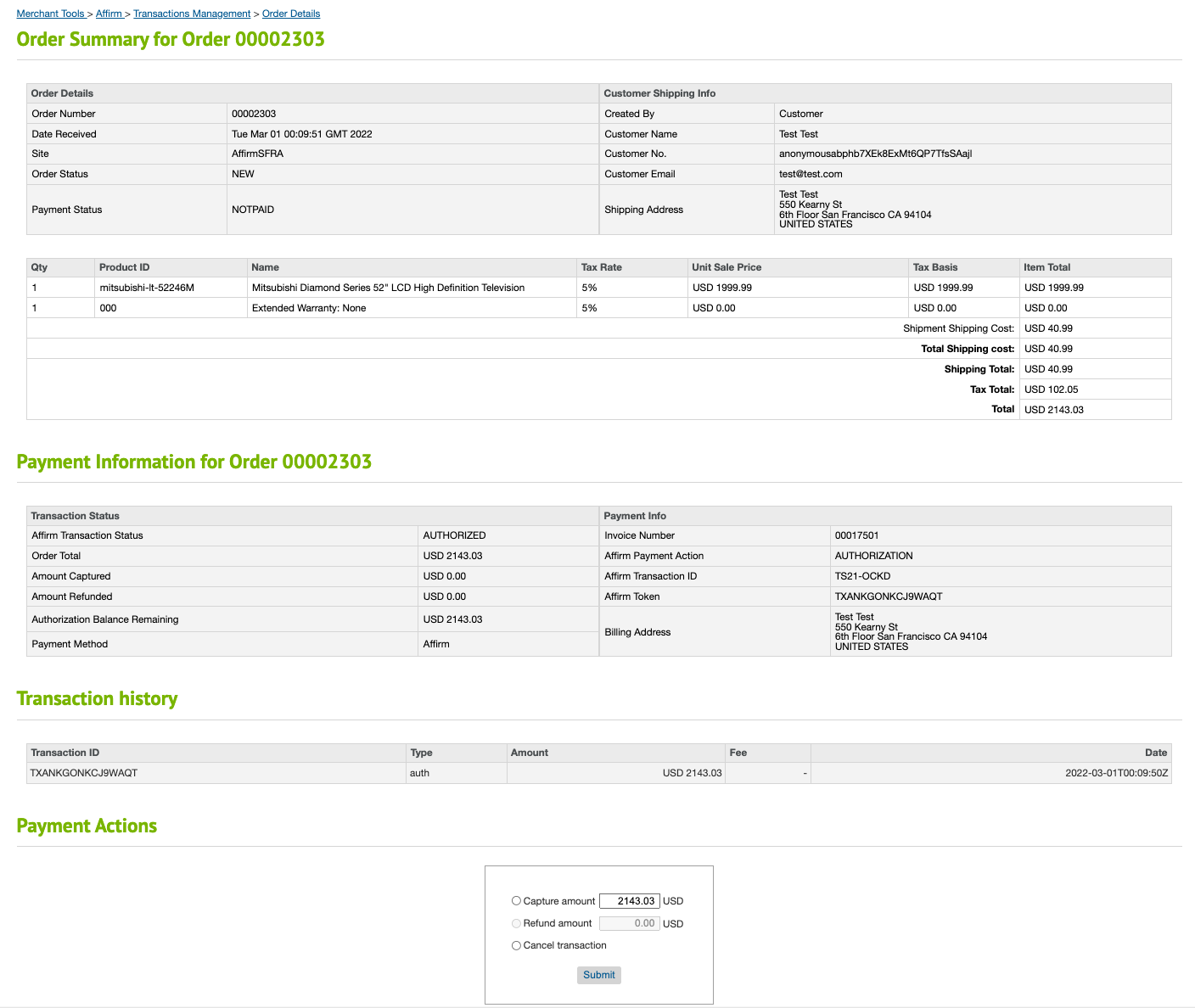
- In the Order Details page, you can perform three types of charge actions:
- Capture (including partial capture)
- You can perform the Capture action when the order status is New or Open, and the payment status is Not Paid or Part Paid.
- You can capture either the full amount or a partial amount.
- Authorization balance, which represents the difference between authorization amount and the current capture amount, is the maximum amount that can be entered as the capture amount.
- Refund
- You can perform the Refund action when the order status is Open or Complete, and the payment status is Part Paid or Paid.
- Any amount above USD 0.01, and up to the currently captured amount, can be entered as the refund amount.
- Void (Cancel)
- When the Affirm transaction status is Authorized, you can void the charge. This changes the order status to Canceled and the payment status to Not Paid.
- Capture (including partial capture)
Mapping order/payment status to Affirm transaction status
| Payment state | Affirm Transaction Status | SFCC Order Status / Payment Status | Available Action(s) |
|---|---|---|---|
| Authorized | authorized | OPEN / NOTPAID | Capture Void |
| Voided | voided | CANCELLED / NOTPAID | None |
| Partially captured | partially_captured | OPEN / PARTPAID | Capture Refund |
| Fully captured | captured | COMPLETED / PAID | Refund |
| Fully refunded | refunded | CANCELLED / NOTPAID | None |
Updated 7 months ago