
Configuring Affirm for SFCC
Learn how to add Affirm as a payment method in Salesforce Commerce Cloud (SFCC).
Country Availability
 USA
USA
 Canada
Supported VersionsIn-line checkout is only available on version 20.1.0 and above.
Prerequisites
Steps
1. Enable Affirm as a payment method
Update these configurations:
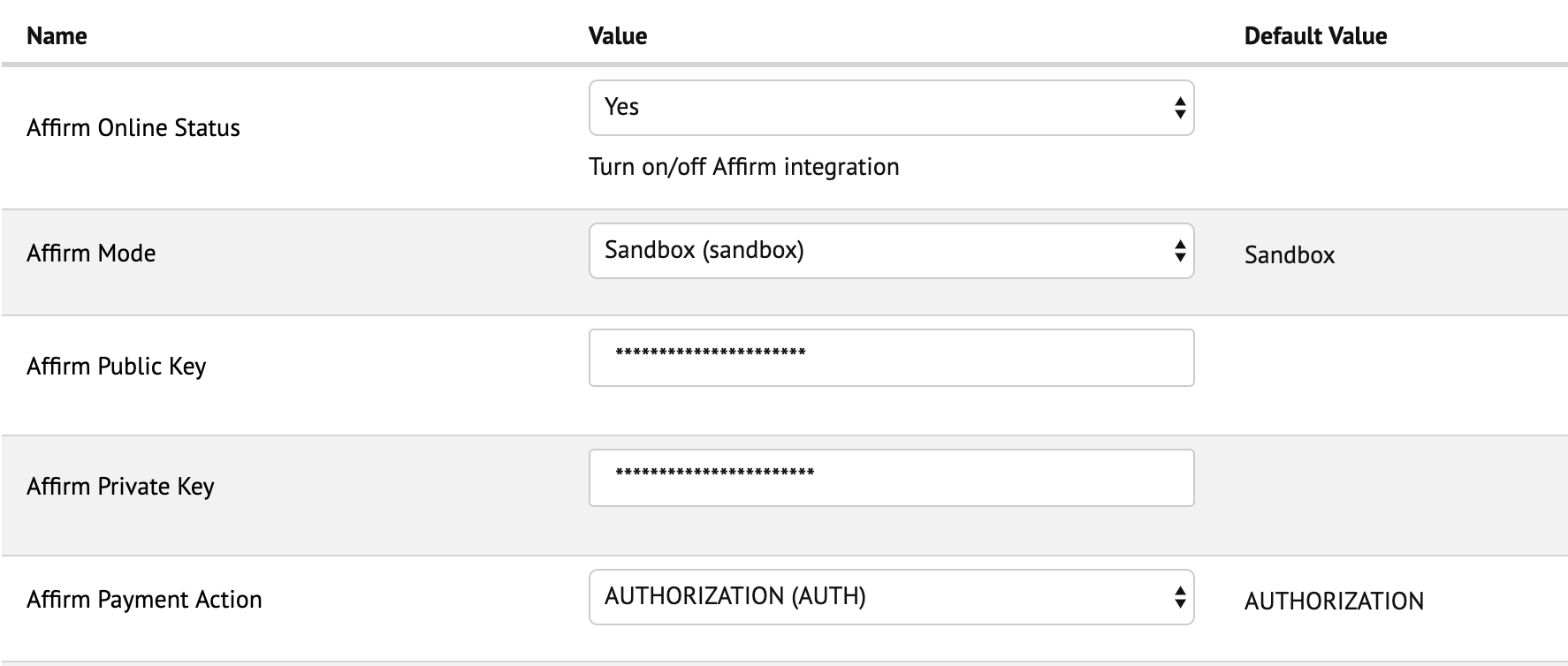
- In the Business Manager go to Merchant Tools > Site Preferences > Custom Preferences > AFFIRM_PAYMENT.
- Set Affirm Online Status to Yes.
- Enter the Affirm Public Key and Affirm Private Key that you retrieved from the Affirm sandbox merchant dashboard.
- Set the:
- Affirm Mode to Sandbox for testing.
- Affirm Payment Country Code to the country for which your account is enabled.
- If your checkout process automatically captures the charge, set Affirm Payment Action to Authorize and Capture.
- Enter the dollar amount values for Payment Min Total and Payment Max Total that displays Affirm as a payment option to your customers when checking out.
- Set Checkout Flow to Redirect (default) or to Modal to control the Affirm checkout flow.
- Set Enable Affirm Analytics to Yes to enable analytics tracking for the order confirmation page.
Additional Settings
- We recommend disabling the VCN Payment Instrument, unless the virtual card integration is enabled for your merchant account.
- Leave the Financing program fields blank. This is managed by Affirm, unless you offer multiple financing programs on a SKU, category, or product level. To learn more about MFPs and how to set them up in Commerce Cloud, contact your Client Success Manager.
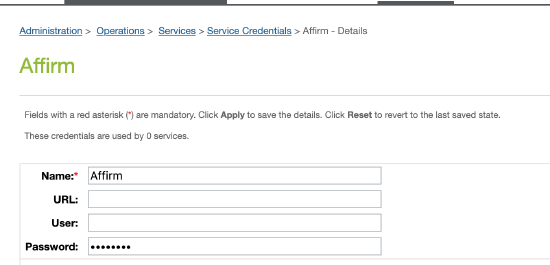
9. In the Business Manager, go to Administration > Operations > Services > Service Credentials.
- Choose New.
- Enter the following details:
- Name: Affirm
- User: Add your Affirm Public Key.
- Password: Add your Affirm Private Key.
2. (Optional) Inline Checkout
With Inline Checkout, you can highlight Affirm’s value props early on in the checkout flow to set clear expectations with your customers. #When a customer selects Affirm as a payment option, the view expands and renders the following information in your site:
- Value props: Highlights some of the benefits of paying with Affirm.
- Learn more about Affirm: A learn more link that opens our educational modal.
- Payment timelines: The timeline and amount for each payment.
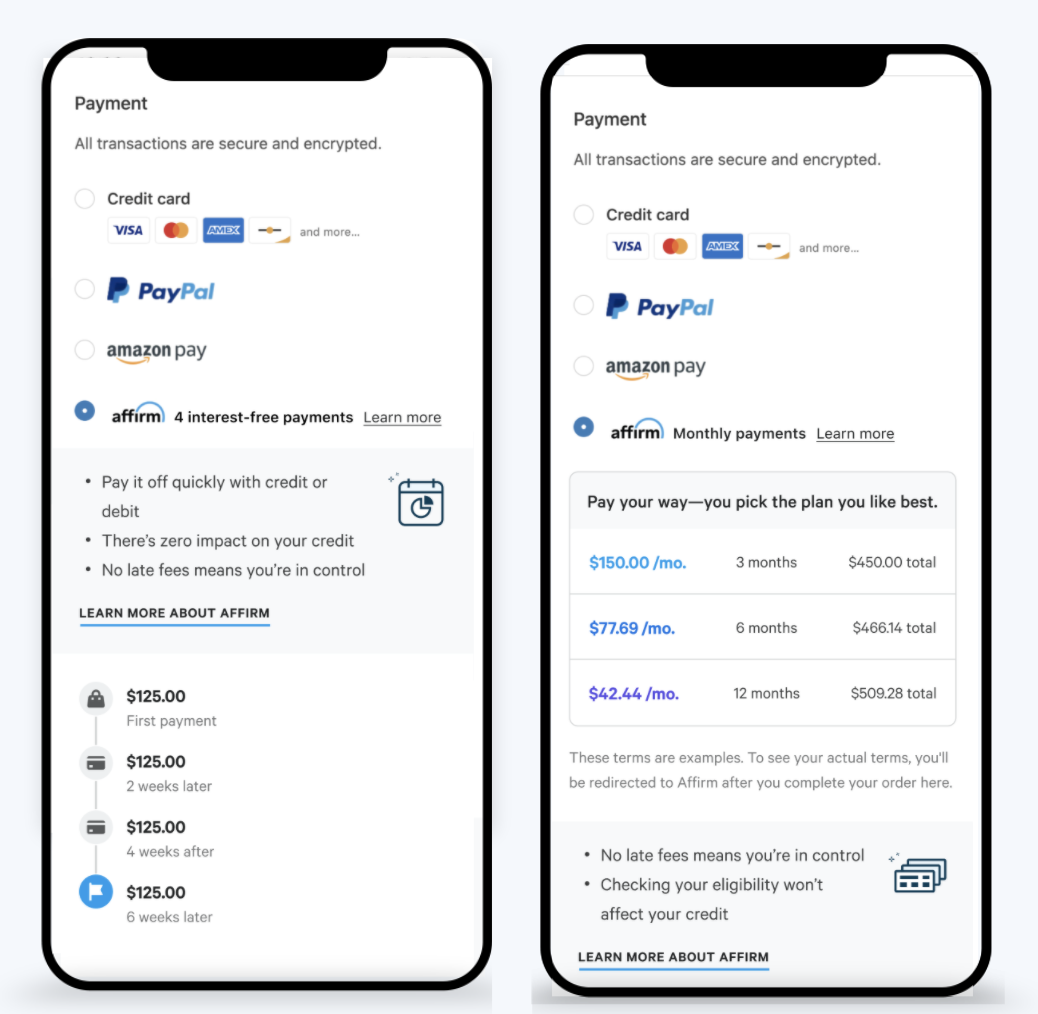
This image displays the Inline flow for Pay in 4 and Installment options.
Enable Inline Checkout
- In the Business Manager, go to Merchant Tools > Site Preferences > Custom Site Preferences > Affirm.
- Set the Show Affirm Inline Checkout Messaging to Yes.

3. (Optional) Multiple Financing Programs
Multiple Financing Programs (MFPs) enable you to offer custom financing programs to your customers based on rules you define in Salesforce Commerce Cloud (SFCC). To learn more about MFPs and how to set them up in SFCC, contact your Client Success Manager.
What's next?
Updated 7 months ago