---
updatedAt: 2026-04-07T16:22:13.000Z
agentTools:
siteIndex: https://docs.affirm.com/llms.txt
projectIndex: https://docs.affirm.com/platforms/llms.txt
---
# Configuring Affirm for SFCC
Learn how to add Affirm as a payment method in Salesforce Commerce Cloud (SFCC).
{`
`}
> 🚧 Supported Versions
>
> In-line checkout is only available on version 20.1.0 and above.
## Prerequisites
* Install Affirm on SFCC
***
## Steps
### 1. Enable Affirm as a payment method
Update these configurations:
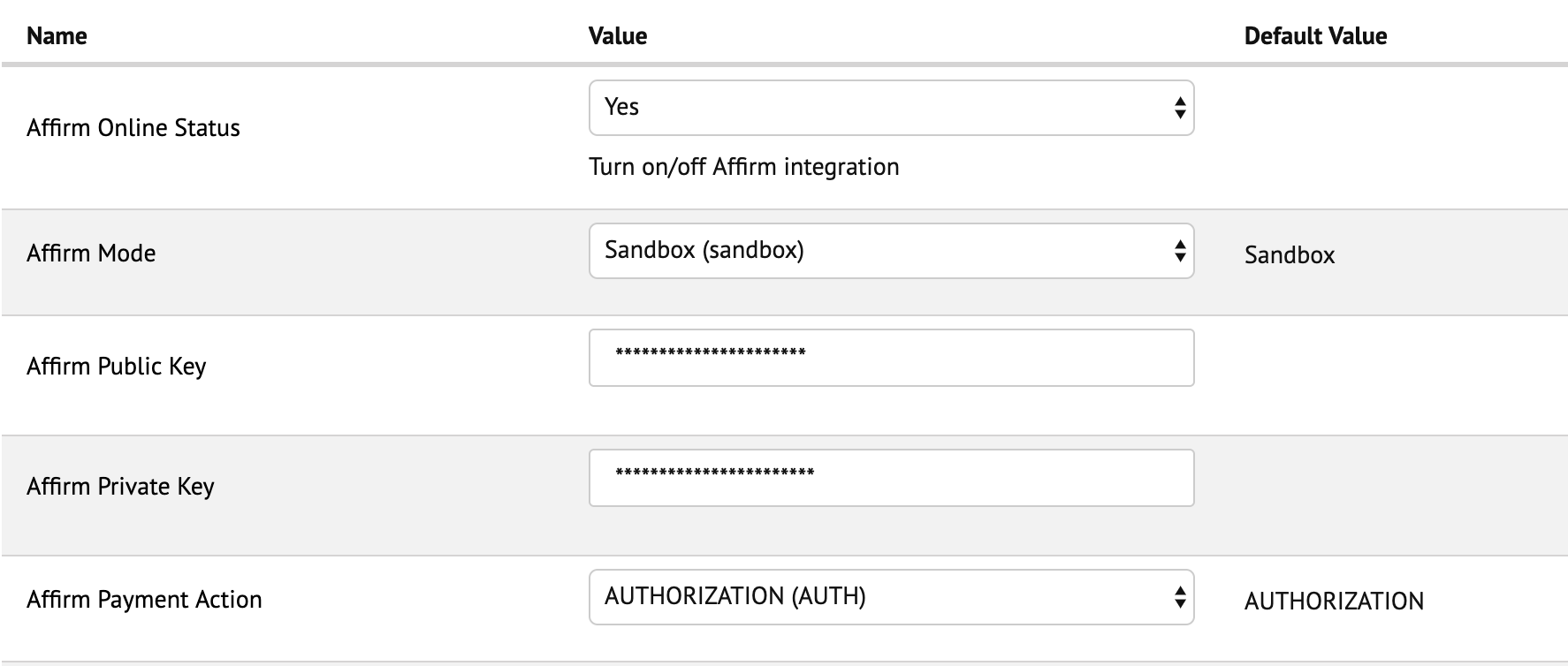
1. In the **Business Manager** go to **Merchant Tools > Site Preferences > Custom Preferences > AFFIRM\_PAYMENT**.
2. Set **Affirm Online Status** to Yes.
3. Enter the **Affirm Public Key** and **Affirm Private Key** that you retrieved from the Affirm sandbox merchant dashboard.
4. Set the:
1. **Affirm Mode** to Sandbox for testing.
2. **Affirm Payment Country Code** to the country for which your account is enabled.
5. If your checkout process automatically captures the charge, set **Affirm Payment Action** to Authorize and Capture.
6. Enter the dollar amount values for **Payment Min Total** and **Payment Max Total** that displays Affirm as a payment option to your customers when checking out.
7. Set **Checkout Flow** to Redirect (default) or to Modal to control the Affirm checkout flow.
8. Set **Enable Affirm Analytics** to Yes to enable analytics tracking for the order confirmation page.
> 📘 Additional Settings
>
> * We recommend disabling the VCN Payment Instrument, unless the virtual card integration is enabled for your merchant account.
> * Leave the Financing program fields blank. This is managed by Affirm, unless you offer multiple financing programs on a SKU, category, or product level. To learn more about MFPs and how to set them up in Commerce Cloud, contact your Client Success Manager.
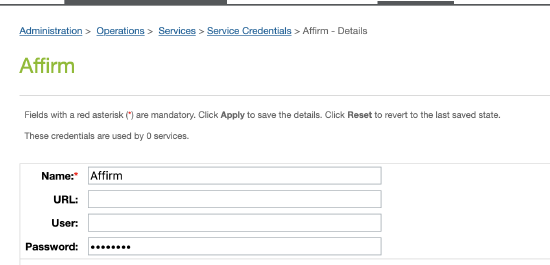
9. In the **Business Manager**, go to **Administration > Operations > Services > Service Credentials**.
10. Choose **New**.
11. Enter the following details:
1. **Name**: Affirm
2. **User**: Add your Affirm Public Key.
3. **Password**: Add your Affirm Private Key.
### 2. (Optional) Inline Checkout
With Inline Checkout, you can highlight Affirm’s value props early on in the checkout flow to set clear expectations with your customers. #When a customer selects Affirm as a payment option, the view expands and renders the following information in your site:
* **Value props:** Highlights some of the benefits of paying with Affirm.
* **Learn more about Affirm:** A learn more link that opens our educational modal.
* **Payment timelines:** The timeline and amount for each payment.
#### Enable Inline Checkout
1. In the **Business Manager**, go to **Merchant Tools > Site Preferences > Custom Site Preferences > Affirm**.
2. Set the **Show Affirm Inline Checkout Messaging** to Yes.

### 3. (Optional) Multiple Financing Programs
[Multiple Financing Programs (MFPs)](https://docs.affirm.com/platforms/docs/salesforce-commerce-cloud-multiple-financing-programs) enable you to offer custom financing programs to your customers based on rules you define in Salesforce Commerce Cloud (SFCC). To learn more about MFPs and how to set them up in SFCC, contact your Client Success Manager.
***
## What's next?
* Add Promotional Messaging to SFCC
# Sibling pages
* [Install Affirm on SFCC](https://docs.affirm.com/platforms/docs/sfcc-installation.md)
* [Add Promotional Messaging to SFCC](https://docs.affirm.com/platforms/docs/add-promotional-messaging-to-sfcc.md)
* [Transaction Management with Jobs in SFCC](https://docs.affirm.com/platforms/docs/transaction-management-with-jobs.md)
* [Using Partial Capture in SFCC](https://docs.affirm.com/platforms/docs/using-partial-capture.md)
* [SFCC FAQ](https://docs.affirm.com/platforms/docs/sfcc-faqs.md)
* [Express Checkout on SFCC](https://docs.affirm.com/platforms/docs/express-checkout-on-sfcc.md) USA
 Canada